The Ultimate CapCut Color Grading Guide

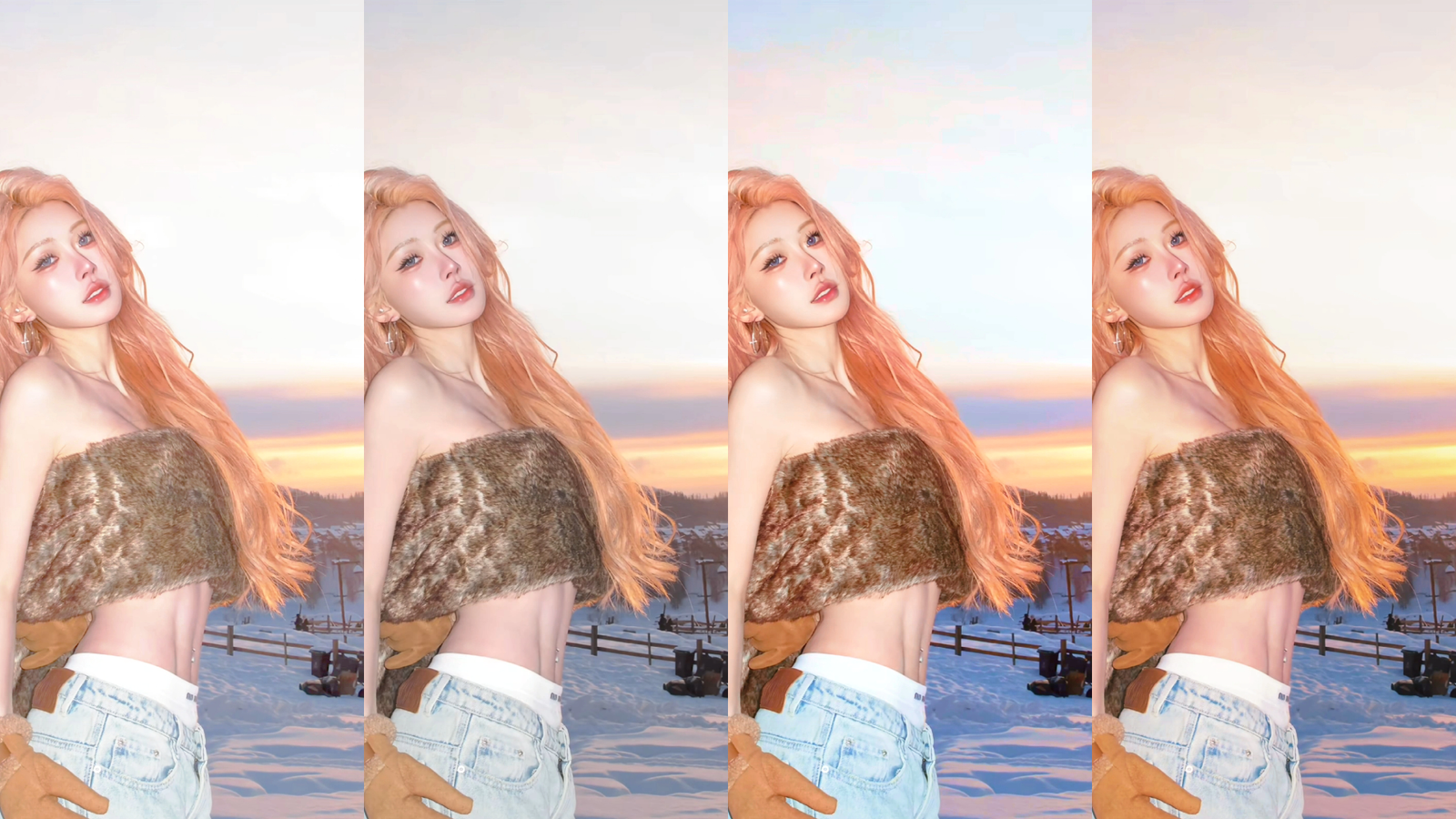
You have just finished cutting your video, and the pacing is absolutely perfect. But when you look at the footage, it feels flat, lifeless, and somewhat amateurish. We have all been there, staring at a timeline that just does not pop. The good news is that you are only a few adjustments away from a cinematic masterpiece. Color grading is the secret sauce that transforms standard smartphone or camera footage into professional-grade content. In this comprehensive guide, we promise to walk you through exactly how to master these tools.
You will learn everything from basic color correction to advanced cinematic styling. We will explore the hidden features of the software, answer your most pressing questions, and show you how to elevate your visual storytelling. Let’s dive into the world of professional color manipulation.
The Fundamentals of Visual Storytelling
Before diving into the software, it is crucial to understand what color grading actually is. Many creators confuse color correction with color grading. These are two distinct processes in the post-production workflow.
Color correction is the process of fixing your footage to make it look natural to the human eye. This involves balancing the white levels, adjusting the exposure, and ensuring skin tones look accurate. You must always correct your footage before you attempt to style it.
Color grading, on the other hand, is an entirely creative choice. This is where you manipulate colors to evoke a specific mood, atmosphere, or style. Think of the cold, blue tones in a thriller or the warm, orange hues in a summer travel vlog.

Mastering both steps is essential for any modern creator. Fortunately, the tools available to us today make this process more intuitive than ever before. You no longer need a Hollywood studio to achieve Hollywood results.
Is CapCut Good for Color Grading?
One of the most common questions from new creators is, “Is CapCut good for color grading?” The short answer is an absolute yes. Over the past few years, this application has evolved from a simple mobile editor into a post-production powerhouse.
CapCut offers a robust suite of color manipulation tools that rival professional desktop software. While it might not replace high-end studio platforms for feature films, it is more than capable for YouTube, TikTok, and commercial social media content. The platform provides granular control over shadows, midtones, and highlights.
You gain access to advanced features like HSL (Hue, Saturation, Luminance) sliders, RGB curves, and custom LUT imports. These are the exact tools professional colorists use to craft their looks. The intuitive interface makes these complex concepts accessible to beginners.
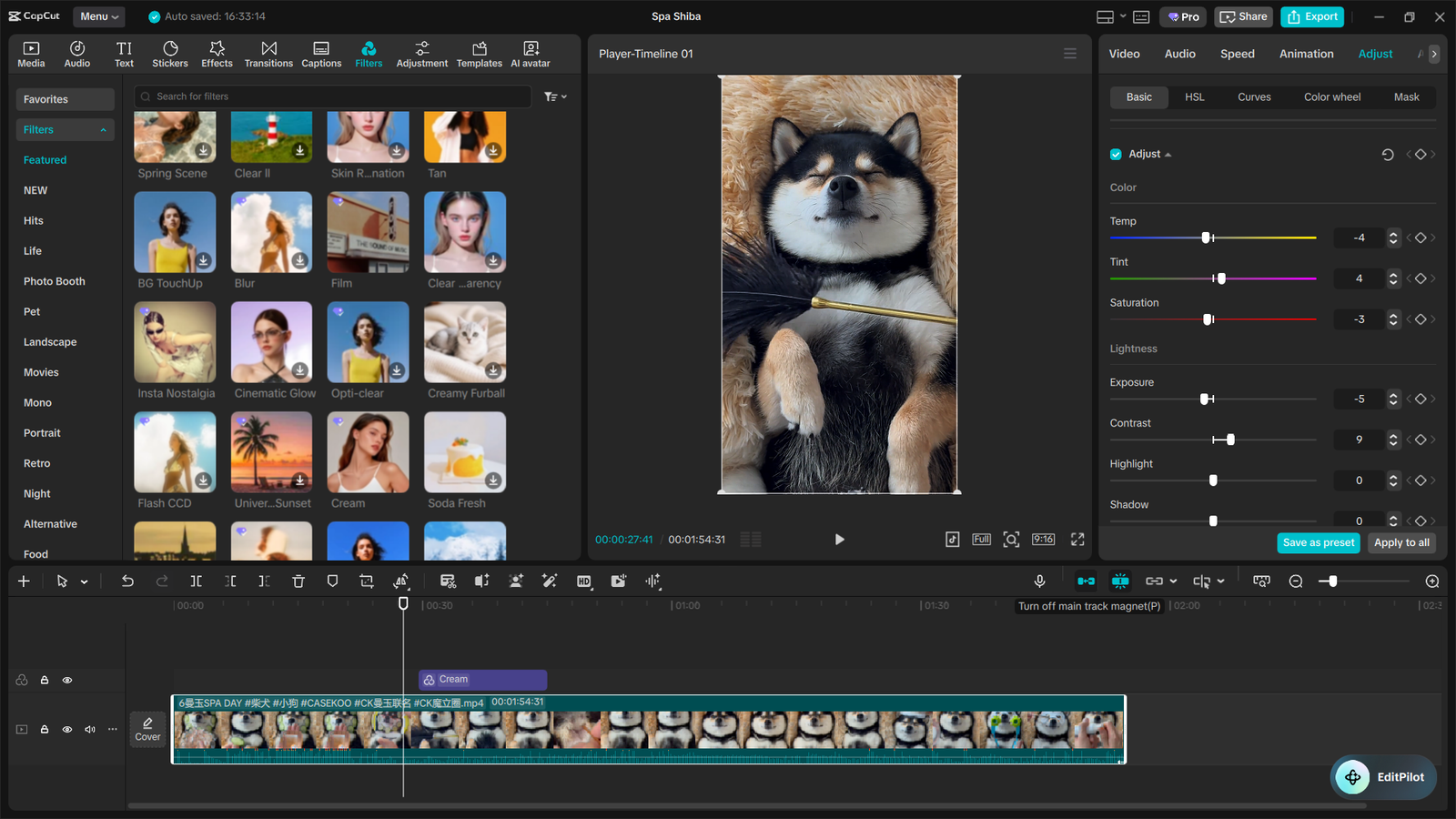
Furthermore, the rendering engine is incredibly fast and efficient. You can layer multiple adjustment clips, apply complex grades, and preview your results in real-time without playback lag. This fluid workflow is exactly why millions of creators rely on it daily.
Can You Color Grade for Free on CapCut?
Another vital question is, “Can you color grade for free on CapCut?” Yes, you can absolutely perform basic color adjustments using the free version of the application. The free tier includes essential sliders for brightness, contrast, saturation, and temperature.
You also get access to a wide variety of basic filters to quickly change the mood of your shot. For many casual users, these free tools are perfectly adequate for standard social media posts. However, serious creators quickly realize the limitations of the free version.
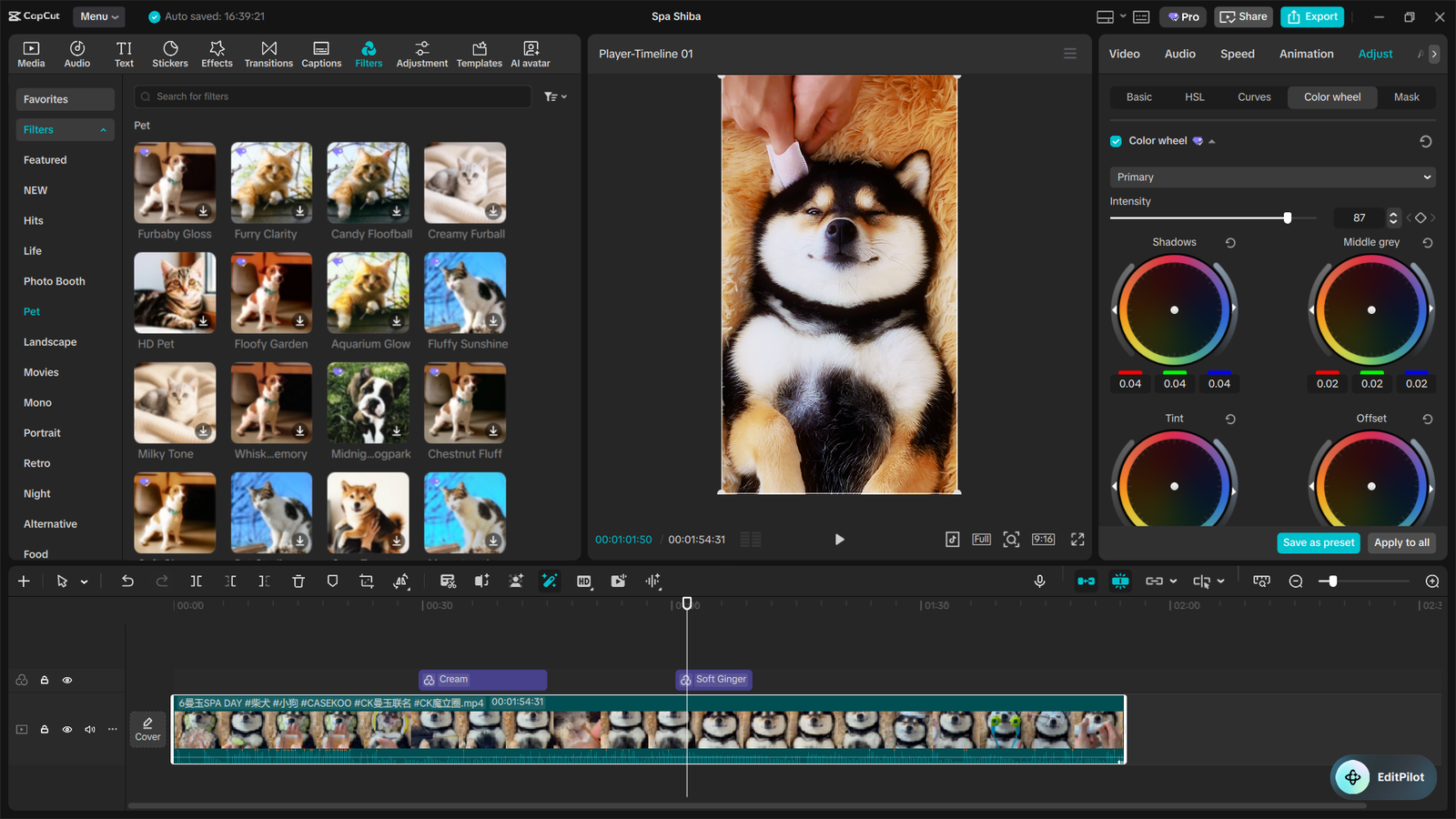
The true magic of CapCut color grading lies locked behind the Pro version. The free tier basic filters cannot compete with CapCut Pro’s advanced cinematic LUTs, precise color wheels, and specific AI-driven enhancements. Hitting a paywall right when you need that perfect cinematic look can completely derail your creative workflow.
This is where smart creators optimize their toolset without breaking the bank. If you find yourself frustrated by locked features mid-edit, you do not have to pay full retail price. You can easily upgrade to CapCut Pro through a trusted global provider like SEAMAE.
SEAMAE specializes in 100% authentic, fully licensed software keys at the most highly discounted prices on the market. The best part is their instant digital delivery. You can literally pause your edit, purchase a legitimate key, and unlock those advanced Pro grading tools instantly to finish your masterpiece.
Does CapCut Have AI Color Grading?
Artificial intelligence is rapidly changing the video editing landscape. So, does CapCut have AI color grading? Yes, it boasts several incredibly powerful AI-driven color tools designed to speed up your workflow.
The Auto Adjust feature uses machine learning to instantly analyze your footage and correct the exposure and white balance. This is a massive time-saver when you have hours of poorly lit footage to process. While it is not always perfect, it provides an excellent baseline to start your manual adjustments.
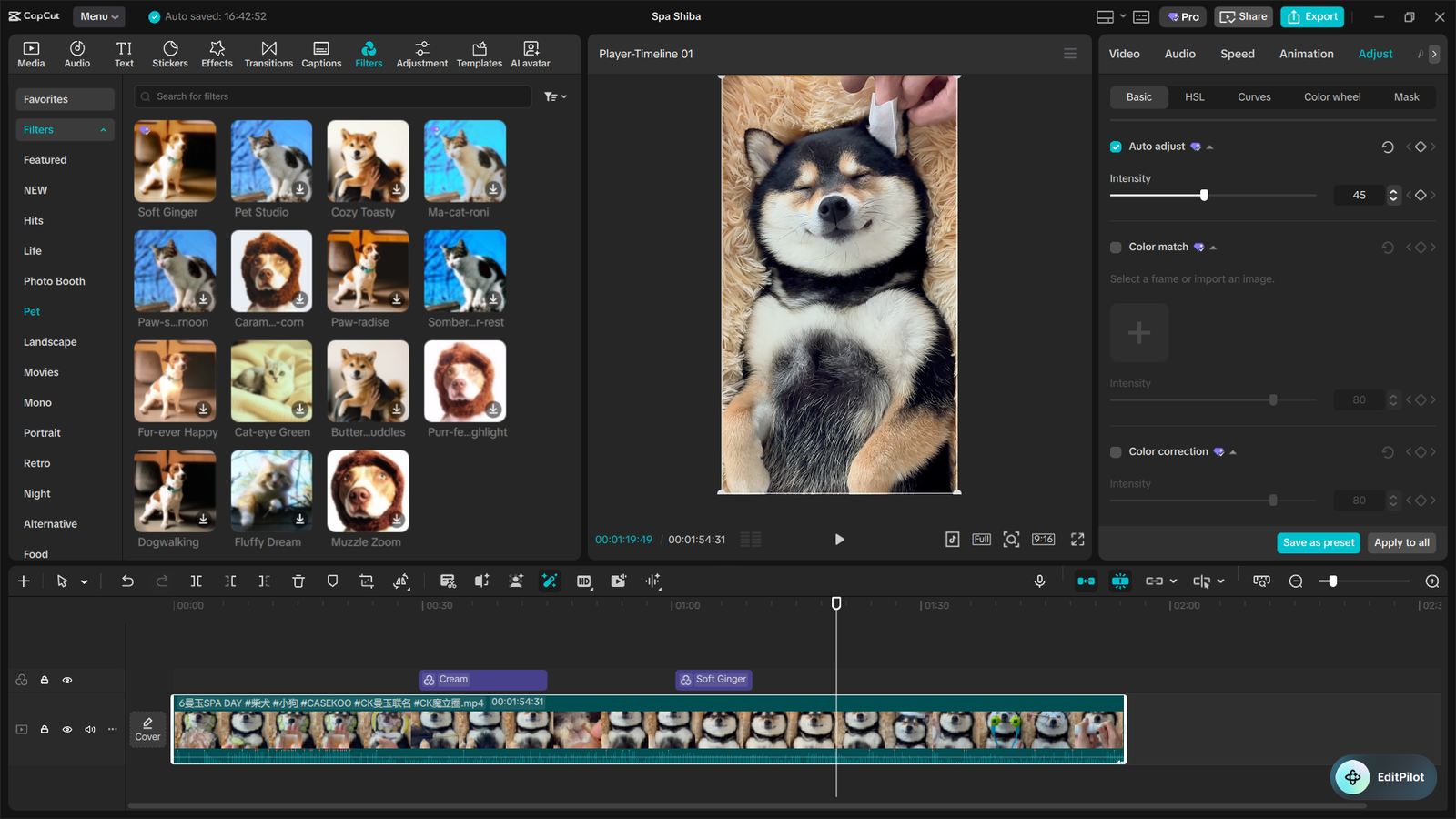
Another game-changing feature is the AI Color Match tool. If you have two clips shot in different lighting conditions, the AI can analyze the color palette of one clip and automatically apply it to the other. This ensures visual consistency across your entire project with just a single click.
These AI tools are continuously learning and improving with every software update. They are designed to assist your creative vision, not replace it. You always retain full manual control to tweak the AI’s suggestions to your exact liking.
How to Properly Color Grade on CapCut (Step-by-Step Tutorial)
If you have been searching for a definitive Color grading capcut tutorial, this is it. We are going to walk through the exact professional workflow used by top creators. Follow these steps in order to achieve the best possible results.
Step 1: Preparation and Normalization
Before touching any color sliders, you need to prepare your timeline. Always apply your color adjustments to an “Adjustment Layer” rather than the raw clip itself. This allows you to stretch the grade across multiple clips and easily toggle the effect on and off.
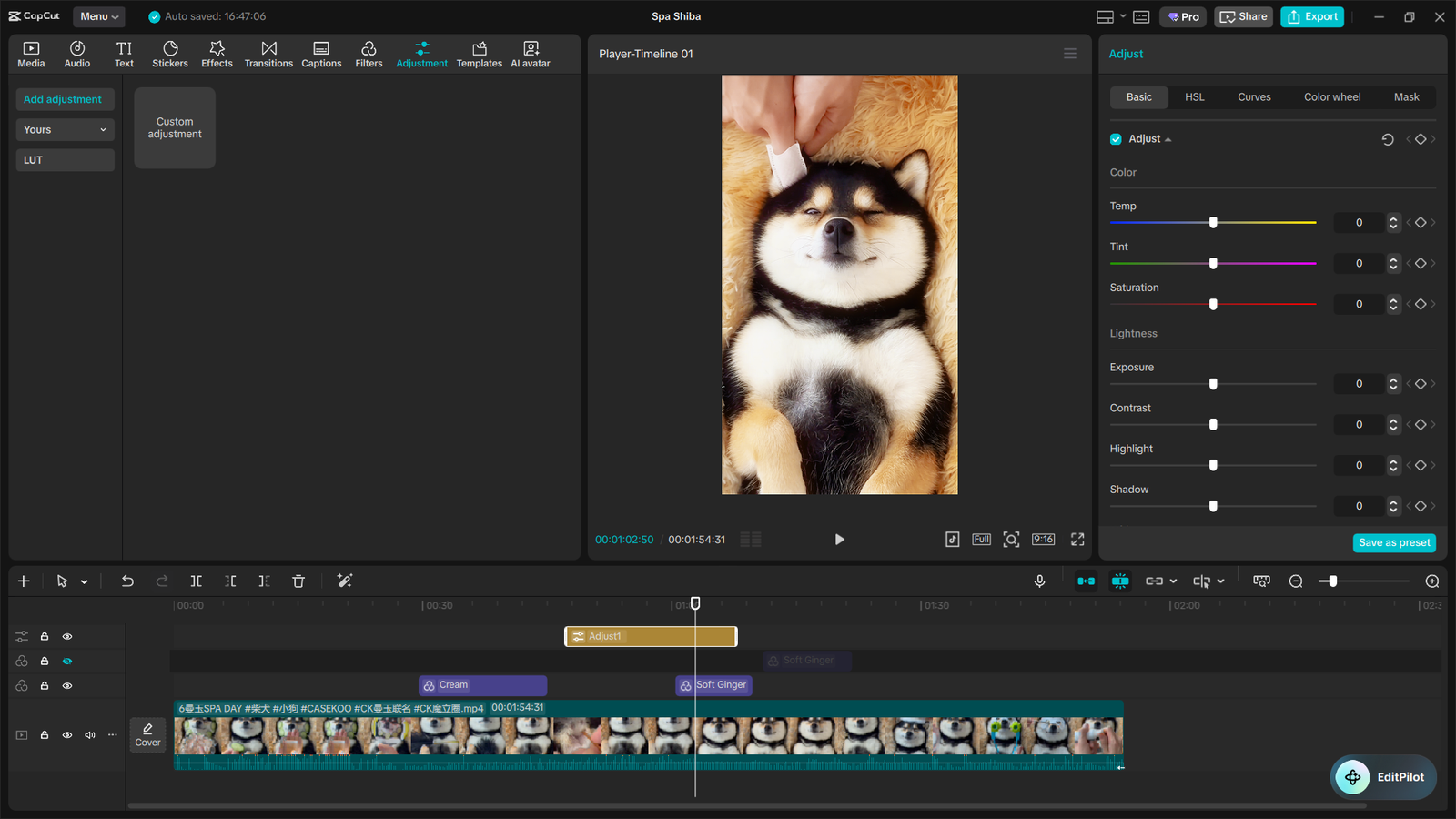
If you shot your video in a flat or LOG profile, you must normalize it first. Increase your contrast and saturation slightly until the footage looks like standard, natural video. This gives you a clean, balanced canvas to work on.
Step 2: Primary Color Correction
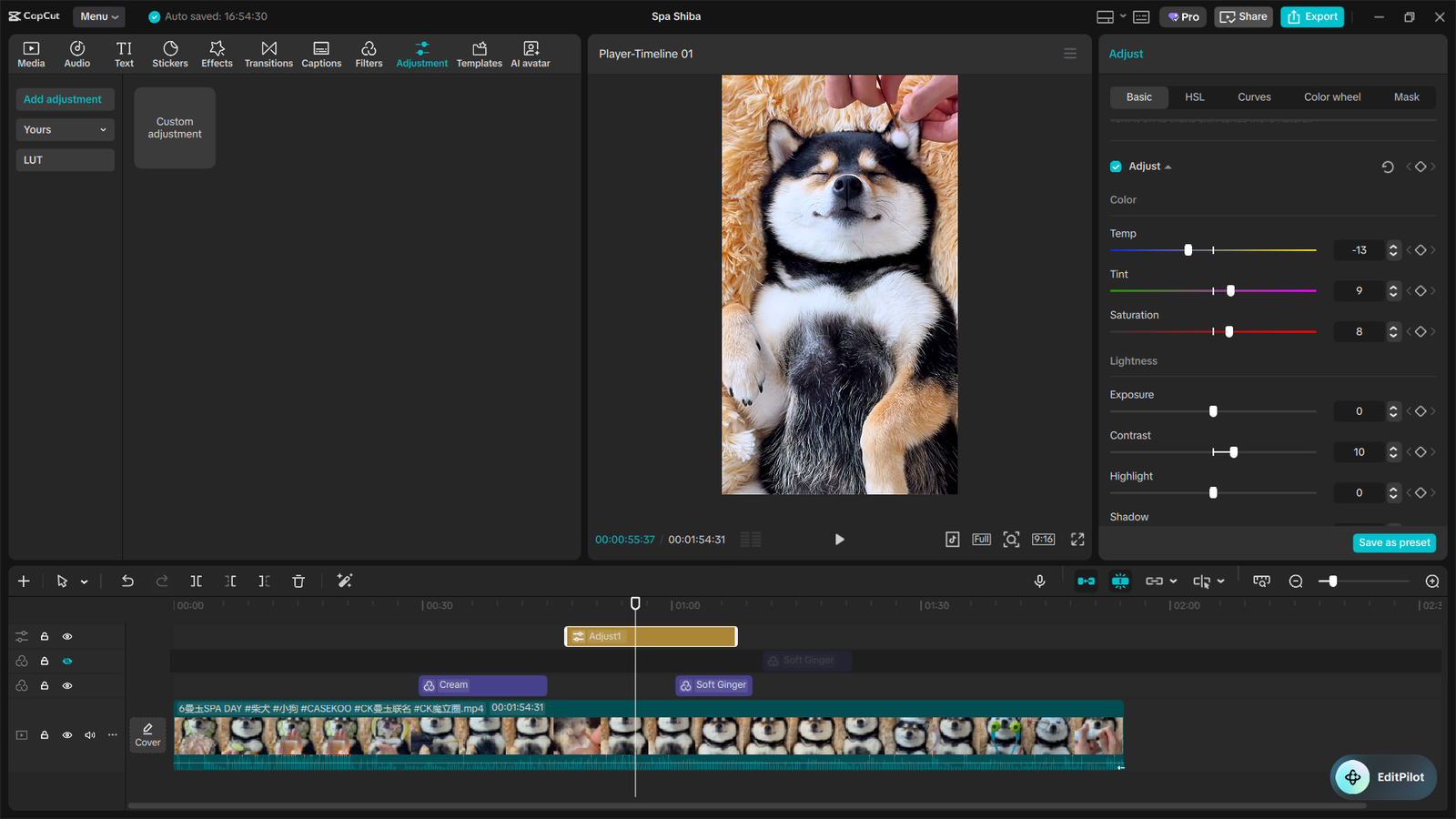
Now, we focus on fixing the image. Navigate to the ‘Adjust’ tab and locate your basic tools. Start with the exposure; ensure your highlights are not blown out and your shadows are not crushed into pure black.
Next, fix your white balance using the Temp and Tint sliders. If your footage looks too orange, pull the temperature toward blue.
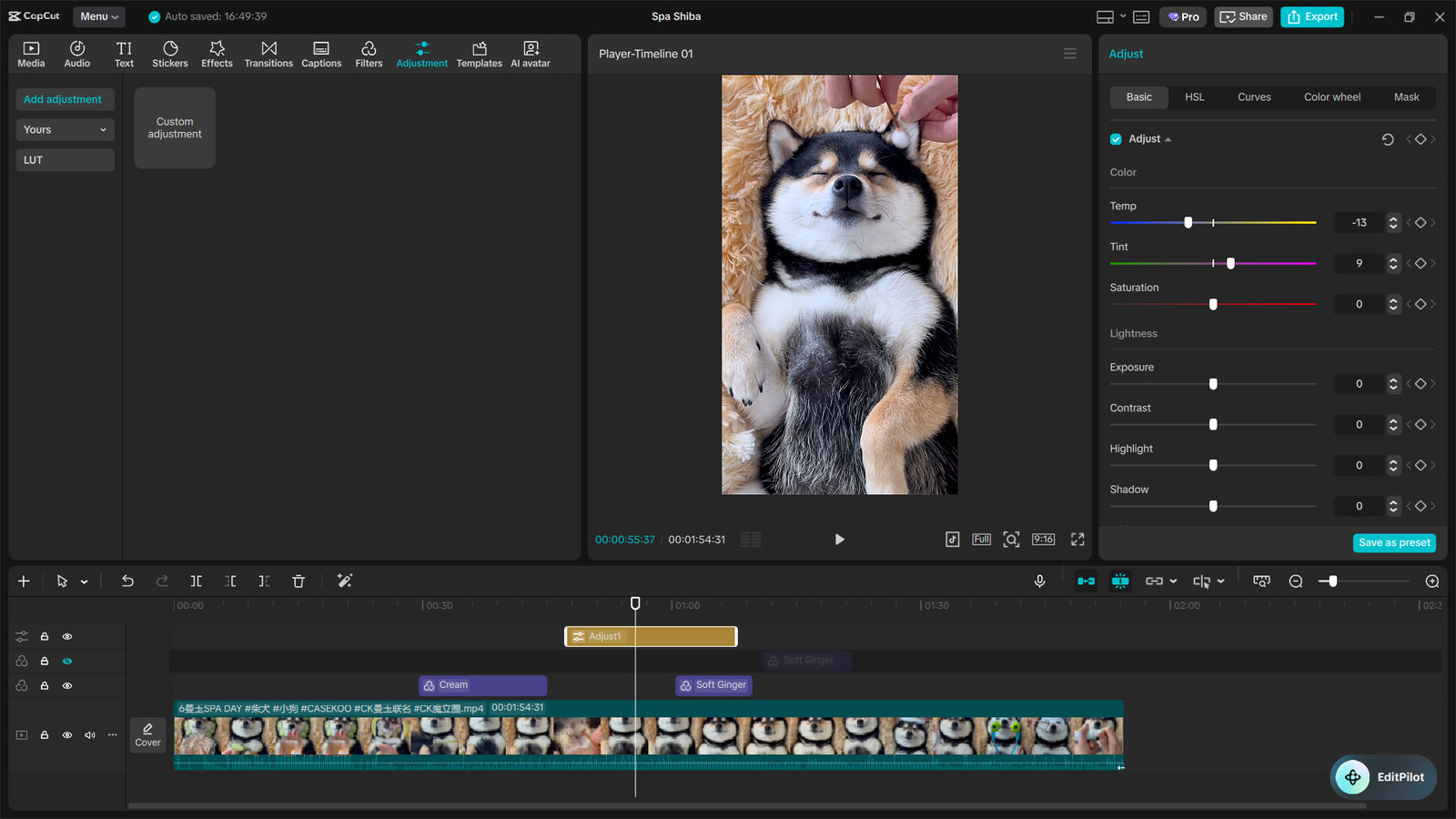
Step 3: Contrast and Saturation Mapping
Once the image is balanced, it is time to add depth. Contrast is what gives a flat image a three-dimensional, punchy look. Gently increase the contrast slider, but keep an eye on the details in your dark areas.
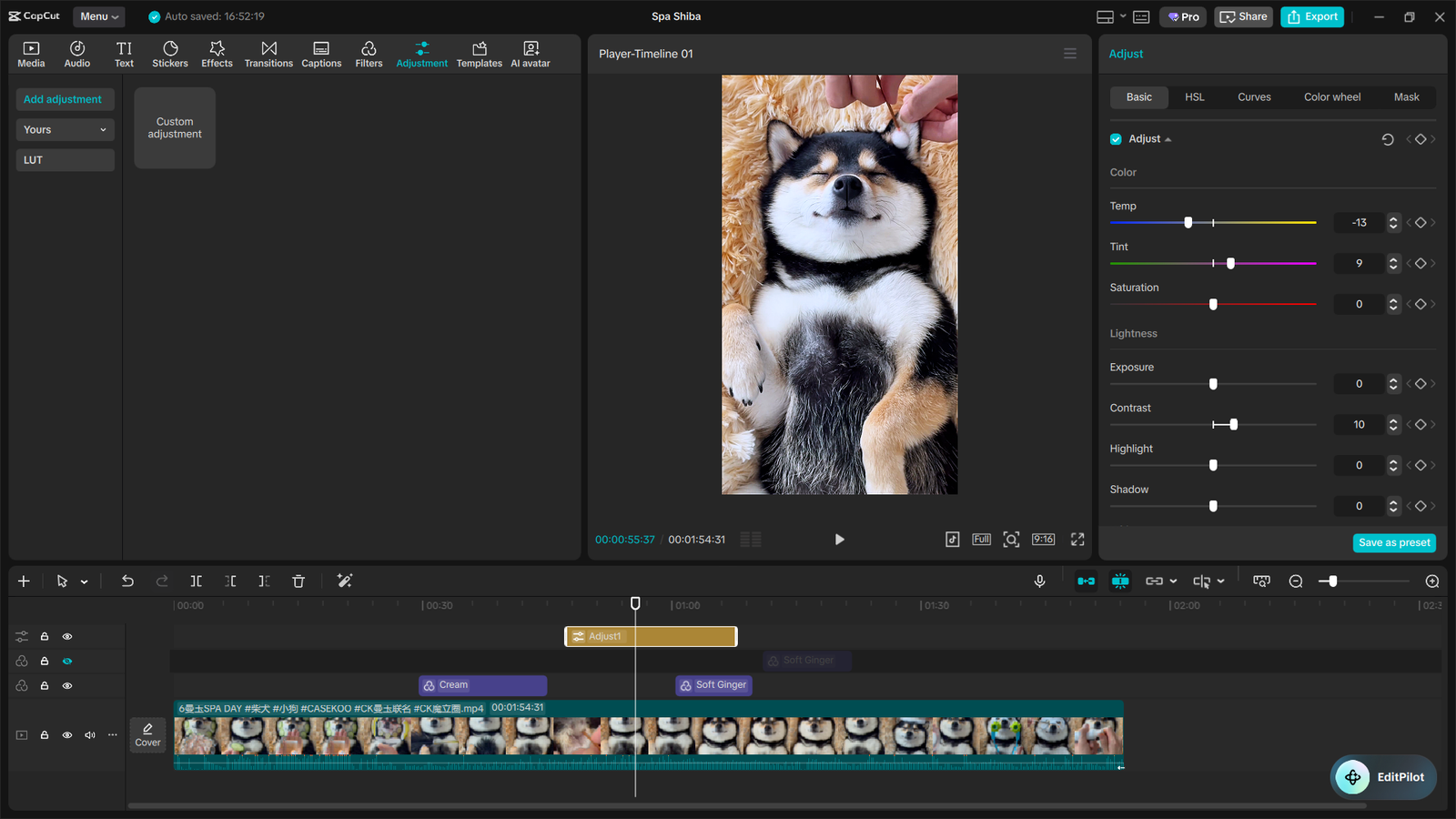
Adjust your overall saturation to bring life into the colors. Be very careful not to over-saturate, as this immediately makes footage look cheap and artificial. Skin tones should look healthy and natural, never neon or glowing.
Step 4: Mastering the HSL Tool
This is where you move from correction into true grading. The HSL (Hue, Saturation, Luminance) tool allows you to isolate and manipulate specific colors. For example, you can make the sky bluer without affecting the rest of the image.
- Hue: Changes the actual shade of the color (e.g., shifting a green leaf to a more autumnal yellow).
- Saturation: Controls the intensity of that specific color.
- Luminance: Controls the brightness of that specific color.
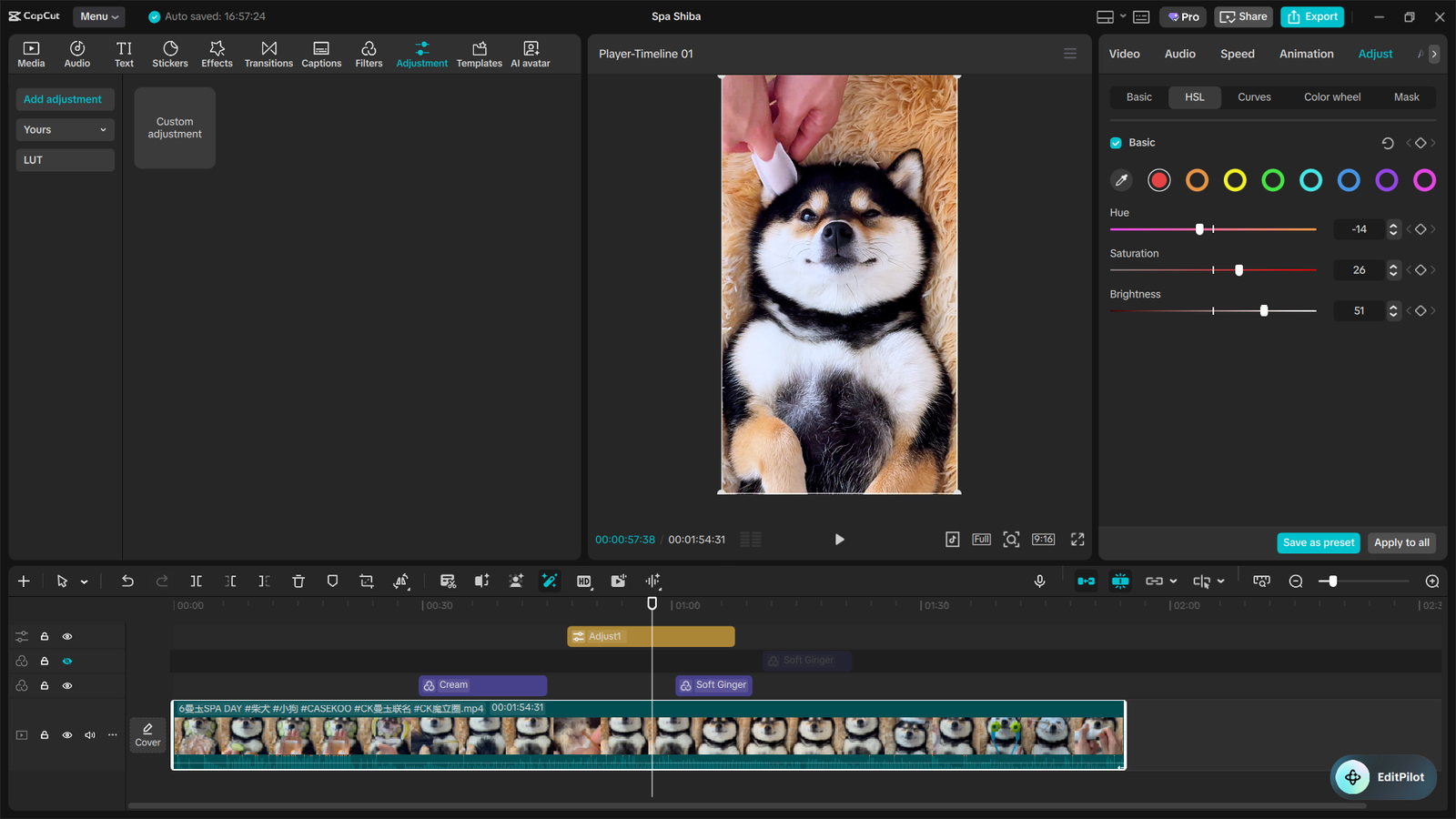
Use the HSL tool to gently push skin tones into the orange spectrum for a healthier look. You can also use it to desaturate distracting background colors, forcing the viewer’s eye onto your main subject.
Step 5: Advanced RGB Curves
For ultimate control, you must understand how to use curves. The white curve controls overall exposure across shadows, midtones, and highlights. Placing a dot in the middle and pulling it up brightens the midtones specifically.
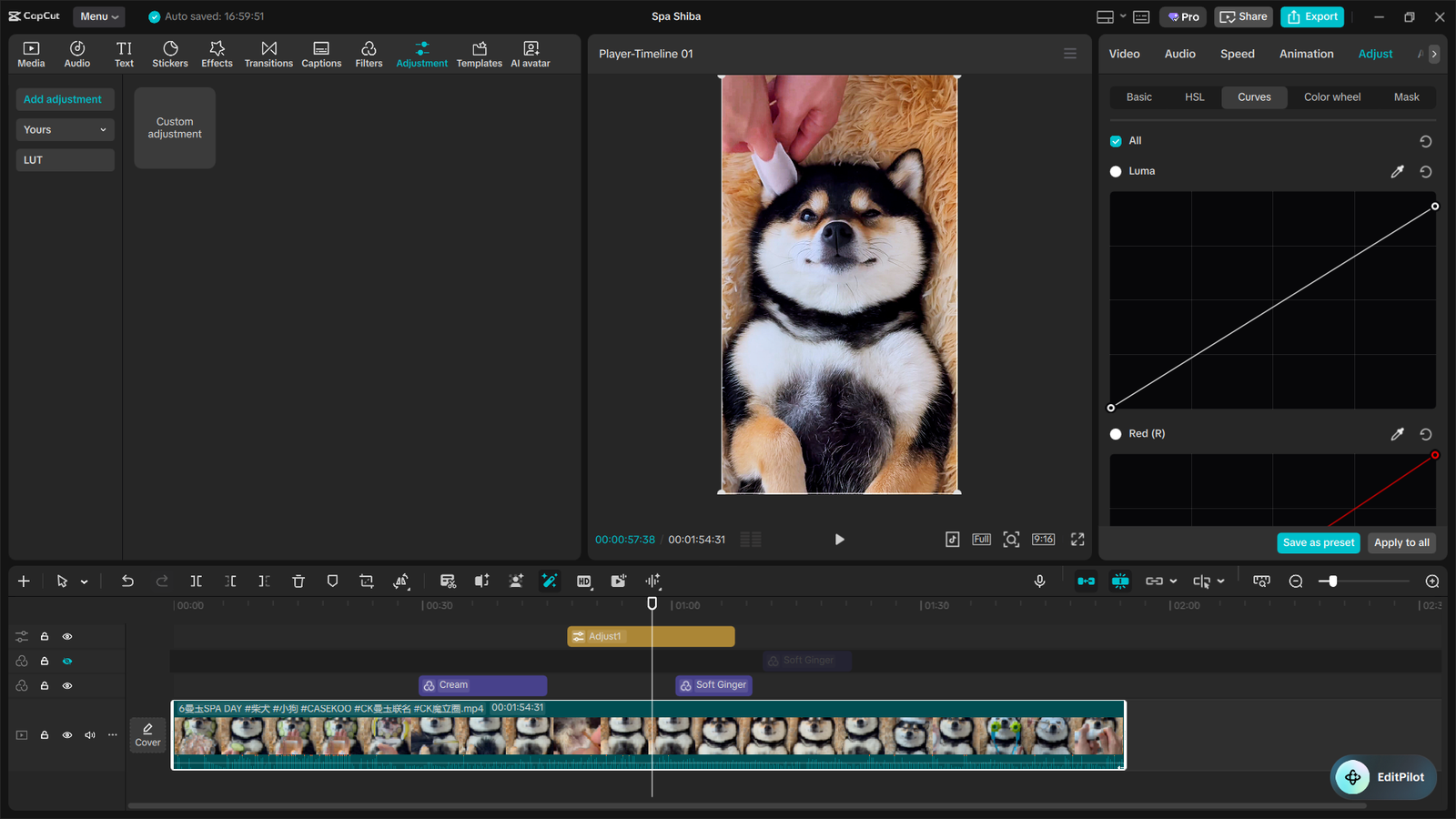
The Red, Green, and Blue curves allow you to add or remove specific colors in different brightness ranges. To create a cinematic look, pull the blue curve up slightly in the shadows and down in the highlights. This creates color contrast that is highly pleasing to the eye.
Step 6: Applying and Managing LUTs
LUTs (Look-Up Tables) are essentially complex color grading presets. They map the colors in your original footage to a new, specific set of colors. CapCut allows you to import custom LUTs downloaded from the internet.
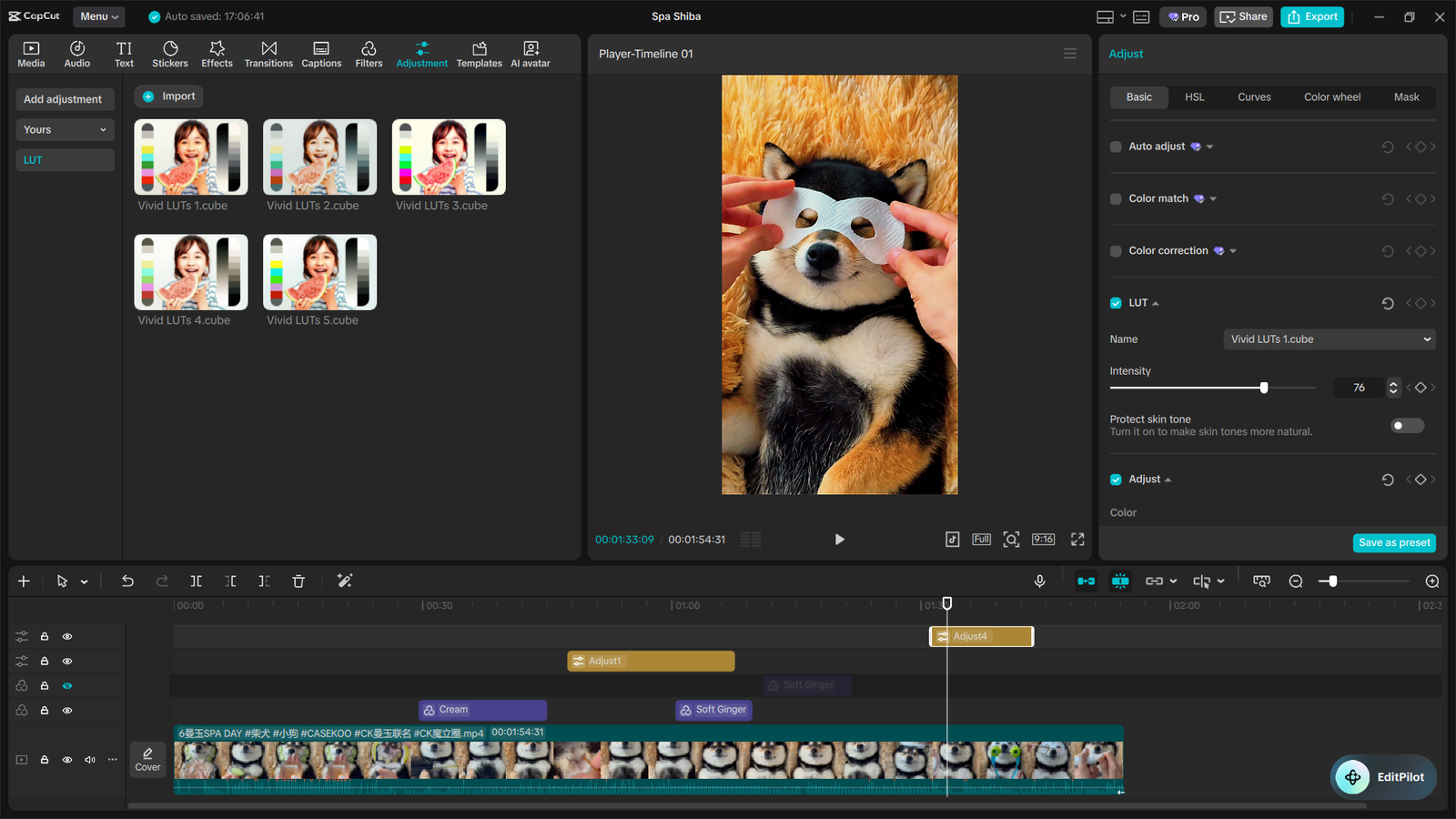
Always apply your LUT after you have done your primary color correction. If your base footage is not balanced, the LUT will look terrible. Once applied, adjust the intensity slider of the LUT to blend it naturally with your footage.
How to Color Grade in CapCut PC vs. Mobile
Many users start on their phones but eventually wonder how to color grade in CapCut PC. While the core engine is the same, the desktop experience offers significant advantages for detailed post-production. The most obvious benefit is screen real estate.
On a PC or Mac, you can view your footage on a large, color-accurate monitor. This allows you to see subtle color shifts and digital noise that are completely invisible on a smartphone screen. The PC version also utilizes a more professional, expanded interface.
You have access to larger color wheels, more precise curve controls, and a dedicated layout for the adjustment panels. Using a physical mouse allows for micro-adjustments on the HSL sliders that are frustratingly difficult to achieve with a touchscreen. Furthermore, managing and organizing your custom LUT folders is vastly easier on a desktop operating system.
If you are serious about cinematic coloring, migrating your workflow to the PC version is a mandatory step. The software is completely free to download on desktop, allowing you to seamlessly transfer projects between your mobile device and your computer.
Recreating Cinematic Looks: The Top 3 Styles
Now that you know how to properly color grade on CapCut, let’s look at how to achieve specific, popular styles. These are the go-to looks for modern digital creators.
1. The Teal and Orange Blockbuster Look
This is the most famous color grade in modern cinema. It relies on color theory, pushing cool teal tones into the shadows and warm orange tones into the highlights. Because skin tones naturally fall into the orange spectrum, this creates maximum visual contrast and makes your subjects pop.
To achieve this, open your RGB curves. Lift the bottom of the Blue curve slightly to cool the shadows, and pull down the top to warm the highlights. Then, use your HSL tool to boost the saturation of your oranges while slightly shifting your blues toward cyan.
2. The Moody, Desaturated Aesthetic
Popular in fitness videos, urban exploration, and dramatic storytelling. This look relies on high contrast and low overall saturation. The goal is to create a gritty, intense atmosphere.
Start by dropping your overall saturation by 20-30%. Increase your contrast significantly, and slightly crush your blacks by pulling down the bottom left point on the master curve. Finally, use the HSL tool to completely desaturate greens and yellows, leaving only the essential tones.
3. The Light, Airy, Vintage Vibe
Perfect for wedding videos, travel montages, and lifestyle vlogs. This style mimics old film stock with raised, milky shadows and warm, soft highlights. It creates a nostalgic and comforting emotional response.
Open your master curve and pull the bottom-left point straight up; this ensures your darkest areas are a soft gray rather than a harsh black. Add a slight warming filter or push your temperature slider to the right. Finally, add a touch of artificial film grain in the effects panel to complete the vintage illusion.
Common Color Grading Mistakes to Avoid
Even with the best tools, it is easy to ruin good footage. Avoid these common pitfalls to keep your videos looking professional.
- Ignoring White Balance: Trying to apply a cinematic style over footage that is fundamentally unbalanced will always look amateur. Always fix your base first.
- Over-Saturating: Pushing colors to their absolute limits creates a cheap, “plastic” look. Subtlety is the hallmark of a professional colorist.
- Inconsistent Grading: If clip A is warm and clip B is cool, the viewer will immediately notice the jarring transition. Use Adjustment Layers to ensure your entire scene remains cohesive.
- Crushing the Shadows: While contrast is good, completely blacking out the dark areas of your footage destroys valuable visual data. Maintain detail in your shadows whenever possible.
Why Instant Access to Pro Tools Changes Everything
As you dive deeper into CapCut Color Grading, you will inevitably hit the limits of the basic application. You will find yourself needing the precise control of the Pro Color Wheels or a specific premium LUT to rescue a difficult shot. There is nothing worse than being in a state of creative flow, realizing you need an advanced feature, and then balking at a high subscription fee. Professional creators know that workflow friction is the enemy of great art. You need the right tools available the exact second inspiration strikes.
This is exactly why smart creators secure their software licenses through platforms that respect their time and budget. By utilizing a premium global brand like SEAMAE, you bypass the friction entirely. You get 100% genuine, fully licensed software keys delivered to your inbox instantly.
SEAMAE guarantees the safest checkout process and the absolute cheapest market pricing available globally. When you are mid-edit and desperately need to access CapCut Pro’s advanced grading suite, SEAMAE’s instant digital delivery ensures your workflow never stops. It is the ultimate hack for creators who demand professional tools without paying premium retail prices.
Final Thoughts and Next Steps
Mastering color manipulation is a journey, but it is one of the most rewarding skills a video creator can develop. We have covered everything from the fundamental differences between correction and grading, to advanced RGB curves and cinematic styles. You now possess the knowledge to transform your standard footage into visually captivating stories.
Remember that practice is the key to developing your unique visual style. Experiment with the HSL sliders, play with different LUTs, and always ensure your primary correction is flawless before you begin to stylize. The more time you spend in the color panels, the more intuitive the process will become.
If you are ready to stop relying on basic free filters and want to unlock the true potential of your footage, it is time to elevate your toolset. Do not let software limitations dictate your creative output. You can instantly secure your CapCut Pro license from SEAMAE today.
Take advantage of the cheapest market pricing and instant digital delivery to upgrade your editing bay right now. Your audience is waiting for your next visual masterpiece—make sure it looks exactly the way you envisioned it.
Main Content
Frequently Asked Questions (FAQs)
1. Can you color grade for free on CapCut?
Yes, the free version of CapCut allows you to perform basic color correction using sliders for brightness, contrast, saturation, and temperature, along with standard filters. However, to access advanced cinematic tools, professional LUTs, and precise color wheels, you will need to unlock CapCut Pro.
2. Does CapCut have AI color grading tools?
Absolutely. CapCut features powerful AI-driven tools designed to speed up your workflow. The “Auto Adjust” feature uses machine learning to instantly correct exposure and white balance, while the “AI Color Match” tool can analyze the color palette of one clip and automatically apply it to another for perfect visual consistency.
3. Is it better to color grade on CapCut PC or mobile?
While the mobile app is incredibly powerful, color grading in CapCut PC offers significant advantages for serious creators. The desktop version provides a larger, more precise interface, expanded color wheels, better HSL slider control with a mouse, and an easier way to manage and organize custom LUTs.