
You’ve probably noticed that getting views on TikTok is harder than it used to be. The days of posting a simple, unedited video and hitting the For You Page (FYP) overnight are largely gone. Today, audience attention spans are shorter, and the standard for visual quality is higher than ever.
But here is the good news: you don’t need a Hollywood studio or a massive production budget to compete. I promise that by mastering a few advanced editing techniques right on your device, you can create hyper-engaging content that stops the scroll and drives massive engagement.
In this comprehensive guide, we will break down the exact strategies top creators use. You will learn everything from mastering dynamic keyframes to syncing audio perfectly, and discover how unlocking premium tools can completely transform your workflow.
The Secret to the FYP: Why Editing is Your Biggest Asset
Before diving into the technical steps, you need to understand what the TikTok algorithm actually rewards. The platform prioritizes one major metric above all else: audience retention.
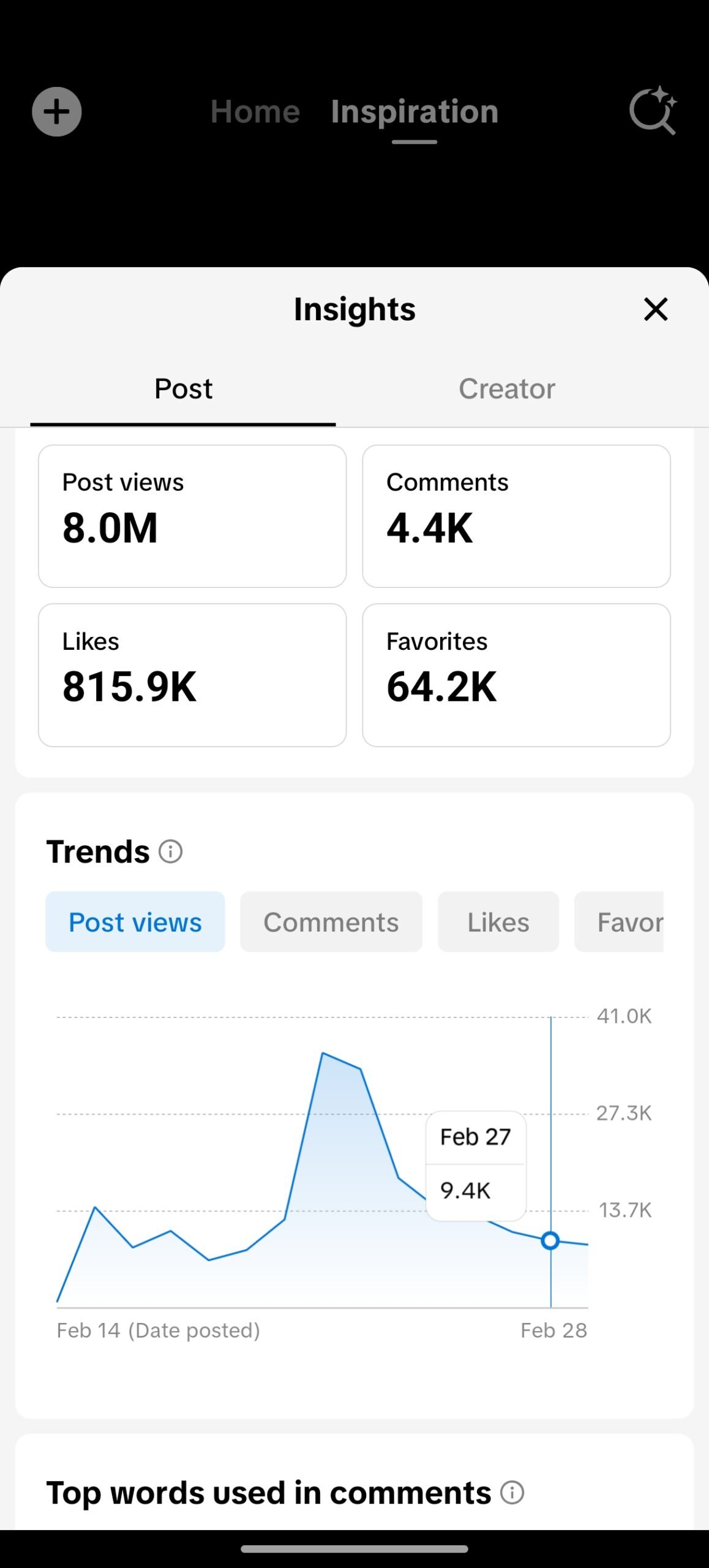
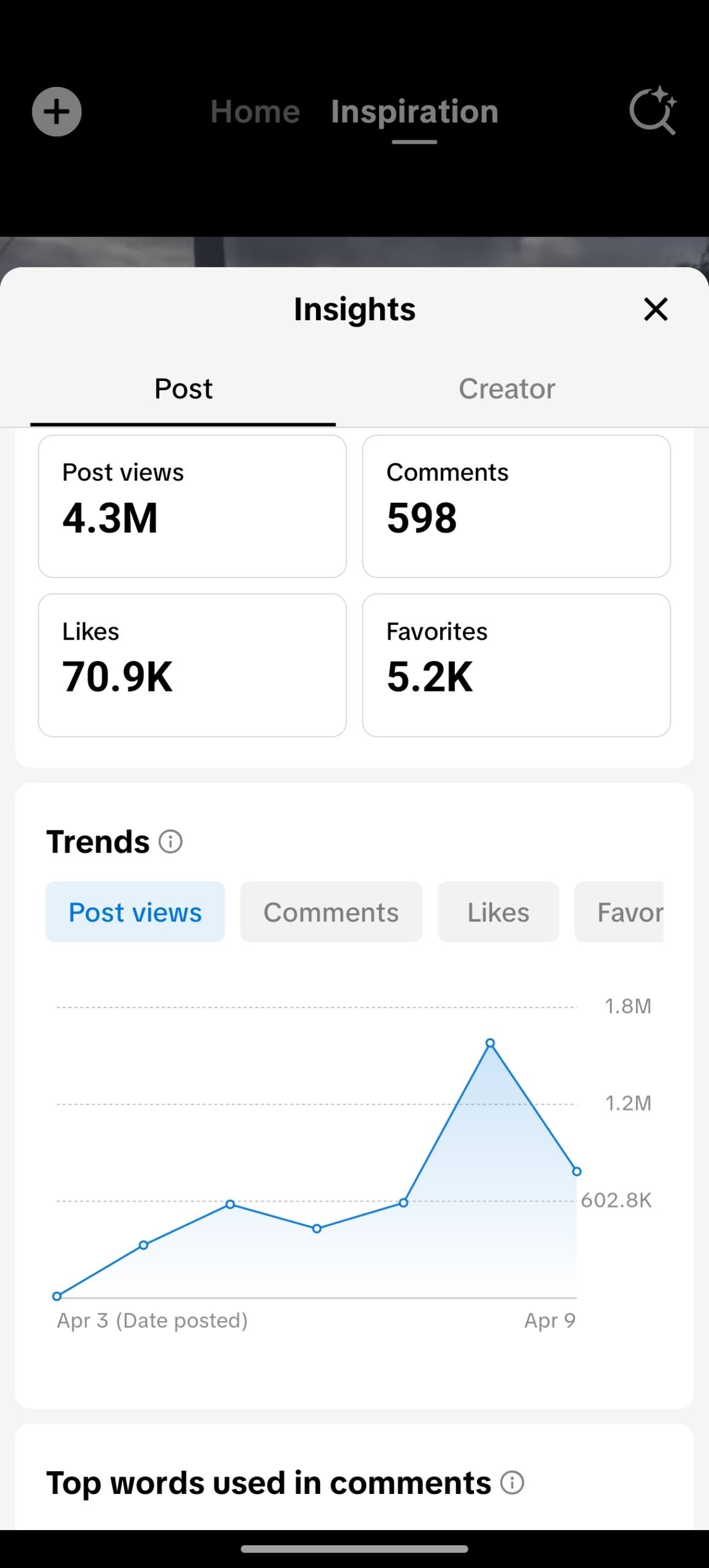
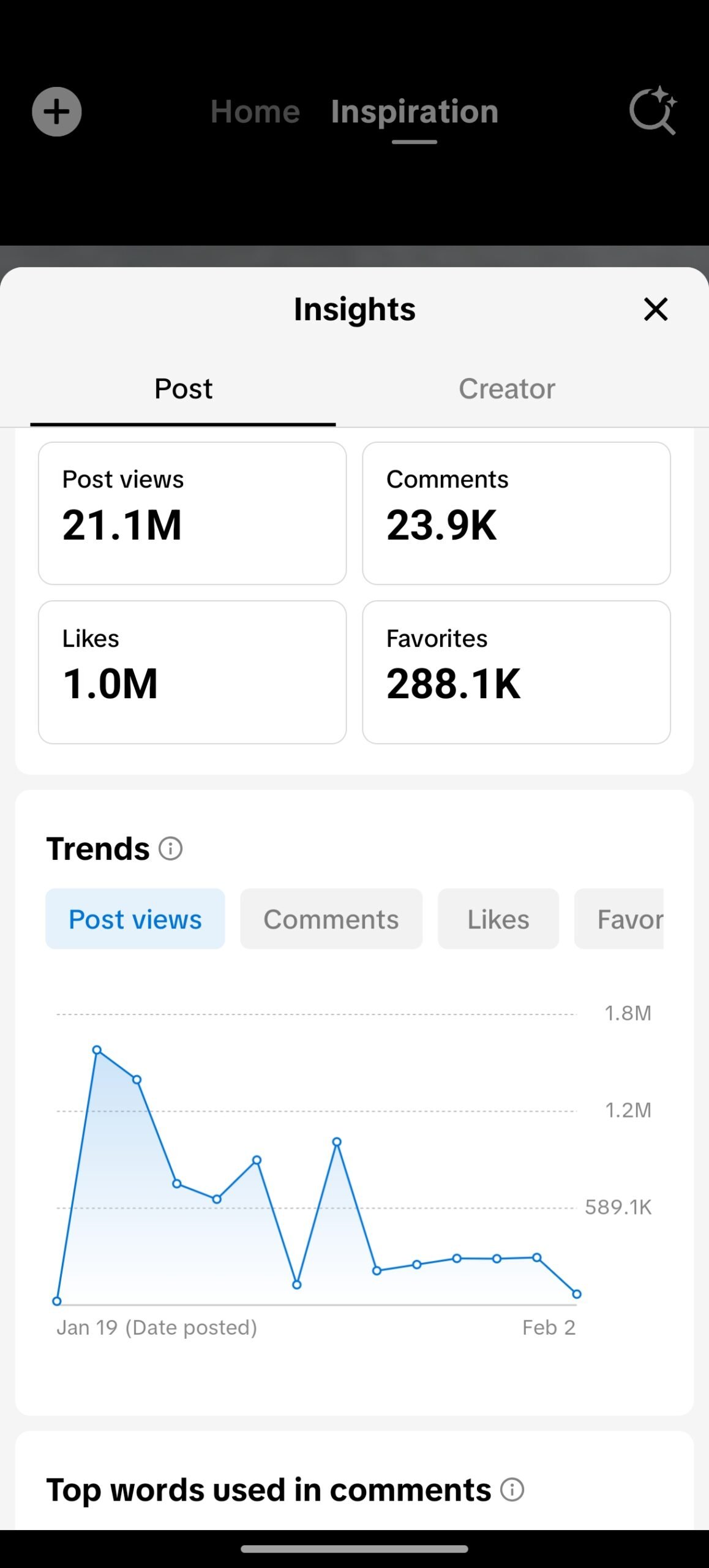
If people watch your video all the way through—or better yet, let it loop—TikTok immediately pushes it to a wider audience. Therefore, every single edit you make must serve one unified purpose: keeping the viewer’s eyes glued to the screen.
This means aggressively eliminating “dead air,” adding constant visual stimulation, and utilizing high-quality effects. You aren’t just cutting clips together; you are directing the viewer’s attention. Let’s look at exactly how to achieve this professional polish.
Step-by-Step Guide: How to Edit TikTok Videos with CapCut
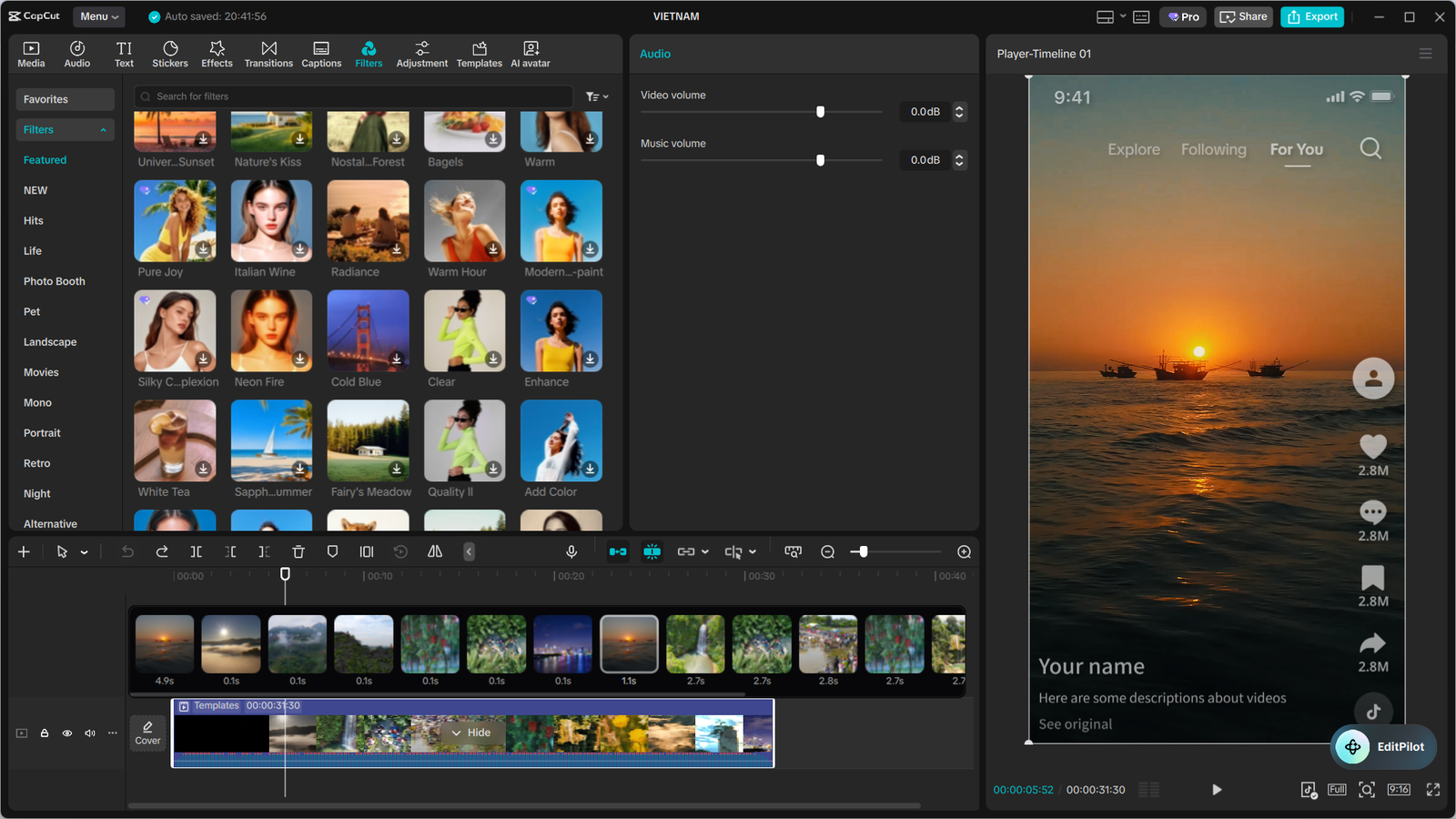
Knowing the theory of retention is great, but executing it flawlessly is what actually gets you views. Here is exactly how to edit TikTok videos with CapCut to maximize your chances of going viral.
1. Perfecting the Three-Second Hook
Your video lives or dies in the first three seconds. If nothing visually interesting happens immediately, the user will swipe away without a second thought.
Start by importing your footage and immediately making a jump cut. Trim away the first few milliseconds where you are taking a breath, clearing your throat, or preparing to speak. You want the audio and action to begin the exact millisecond the video starts.
Next, add an engaging text overlay right at the beginning. Use high-contrast colors and bold fonts so the viewer instantly knows what the video is about before you even finish your first sentence.
2. Mastering Keyframes for Dynamic Movement
Static, unmoving footage is a massive retention killer. If your camera is locked on a tripod for 60 seconds, viewers will get bored. To fix this, you need to master CapCut’s Keyframe tool.
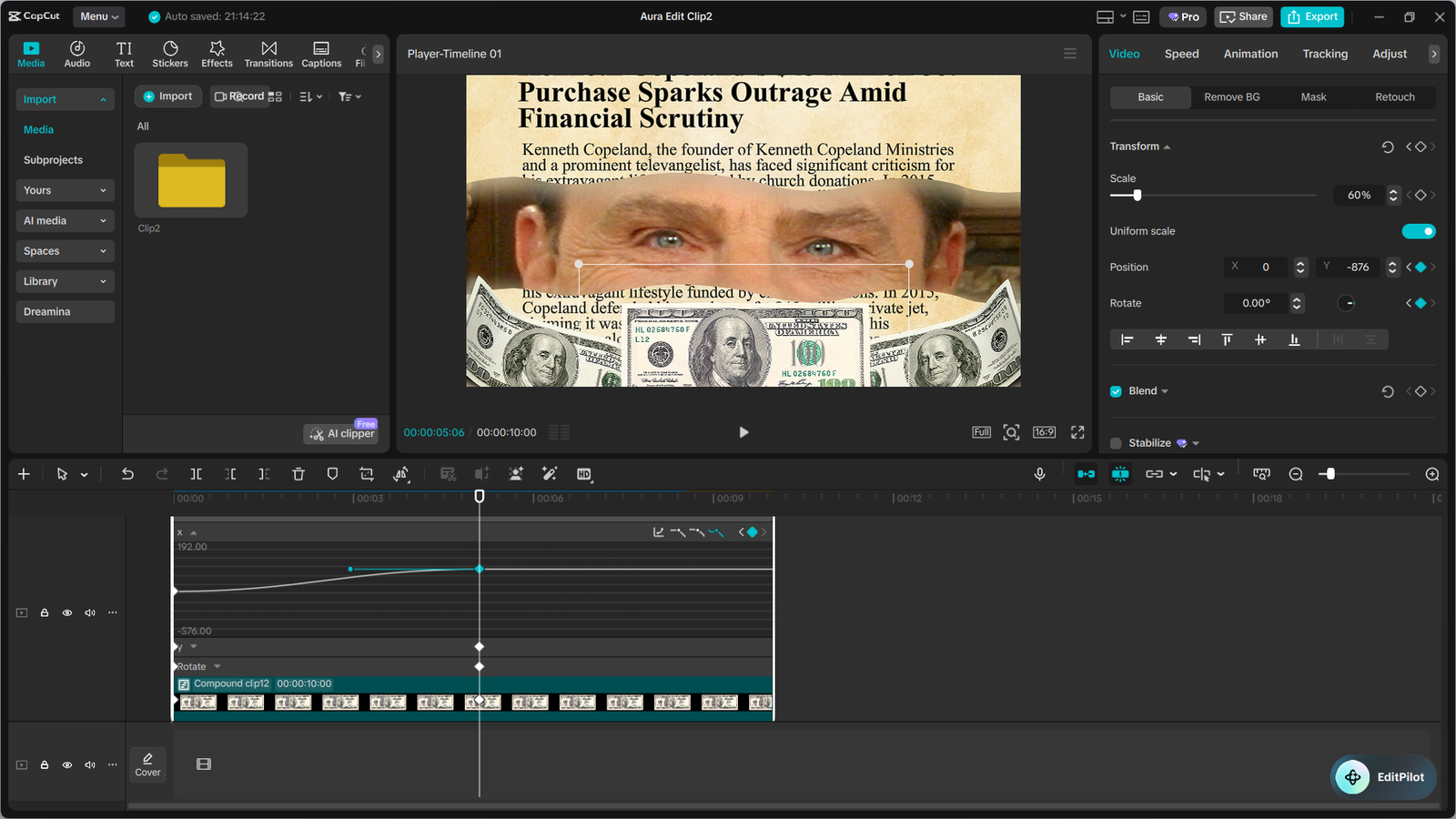
Keyframes allow you to create custom, incredibly smooth movements within static clips. You can slowly zoom in on your face during a crucial point in your story, or pan seamlessly across a product you are showcasing.
To use them, tap your video clip and hit the diamond icon (the keyframe button) at the start of your desired movement. Scroll forward on your timeline, and then pinch the screen to zoom. CapCut will automatically animate the space between those two points, adding instant professional polish to otherwise boring footage.
3. Elevating with Advanced Transitions and Effects
Basic transitions like a simple “fade” or “dissolve” scream amateur. To look like a seasoned pro, you need to utilize advanced visual effects and seamless, high-energy transitions like the “Pull In,” motion blurs, or trendy 3D zooms.
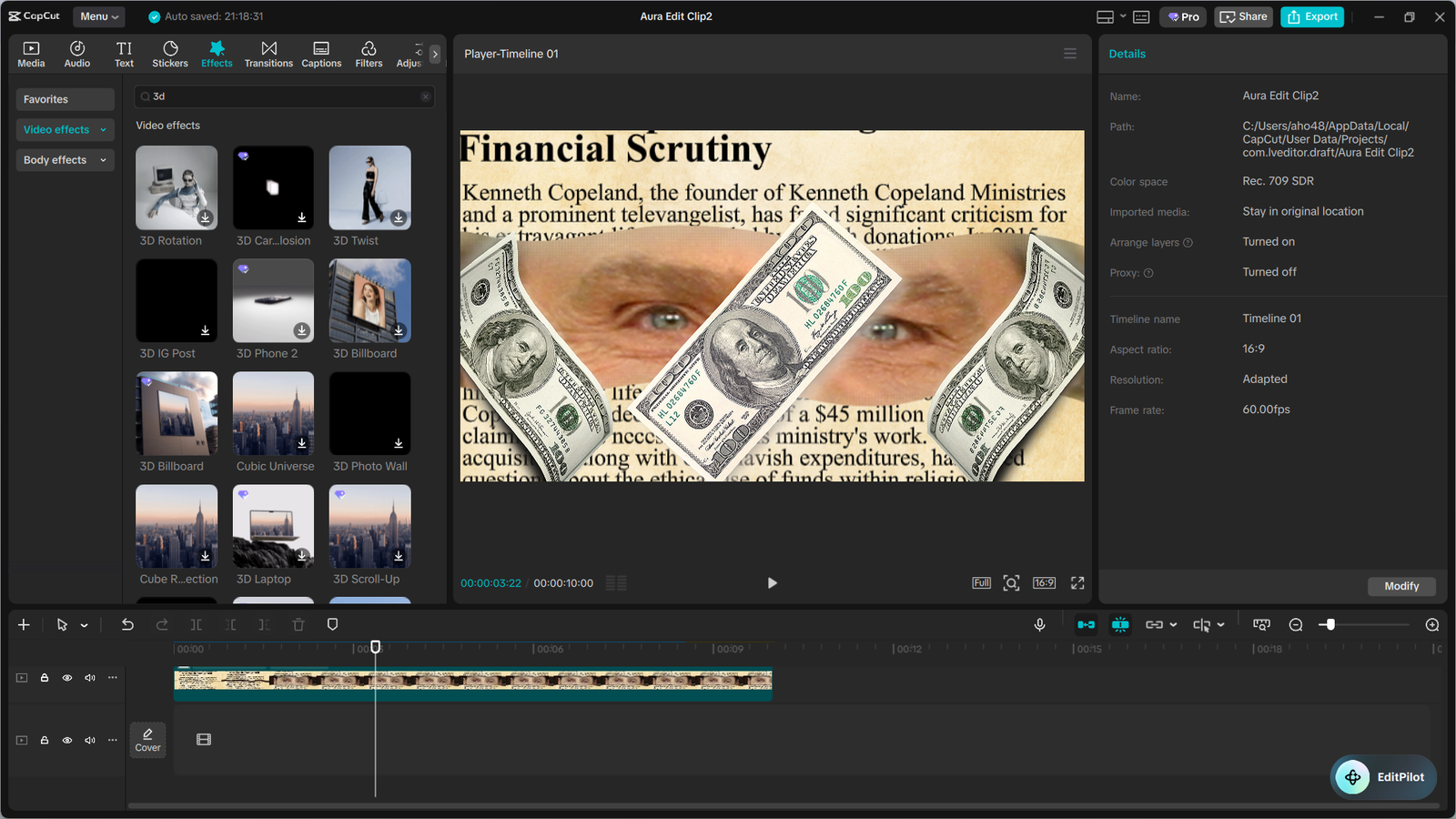
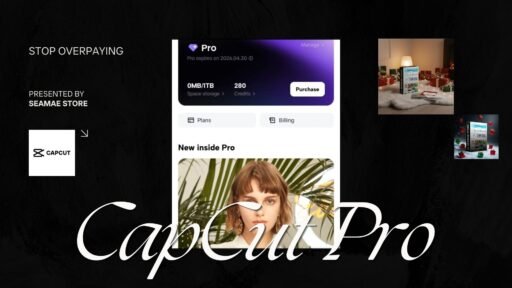
However, you’ll quickly notice that the most viral-worthy effects, advanced body-tracking tools, and high-quality templates are locked behind a paywall. To truly elevate your content and access these tools, you need a CapCut Pro license.
Do not worry about being burdened by expensive, recurring monthly subscription fees. At SEAMAE, you can grab a 100% genuine, fully licensed software key at the absolute cheapest market pricing. With our highly secure checkout and instant digital delivery, you can unlock these premium features in seconds and get right back to editing your masterpiece.
4. Flawless Audio Syncing and Sound Design
Good audio is actually more important than good video. You can have a visual masterpiece, but if the sound is terrible or out of sync, the video will inevitably flop.
First, use CapCut’s “Extract Audio” feature to pull trending, high-quality sounds directly from TikTok into your timeline. Then, utilize the Match Cut (Beats) tool. CapCut will automatically generate yellow dots on the audio track where the heavy beats hit.
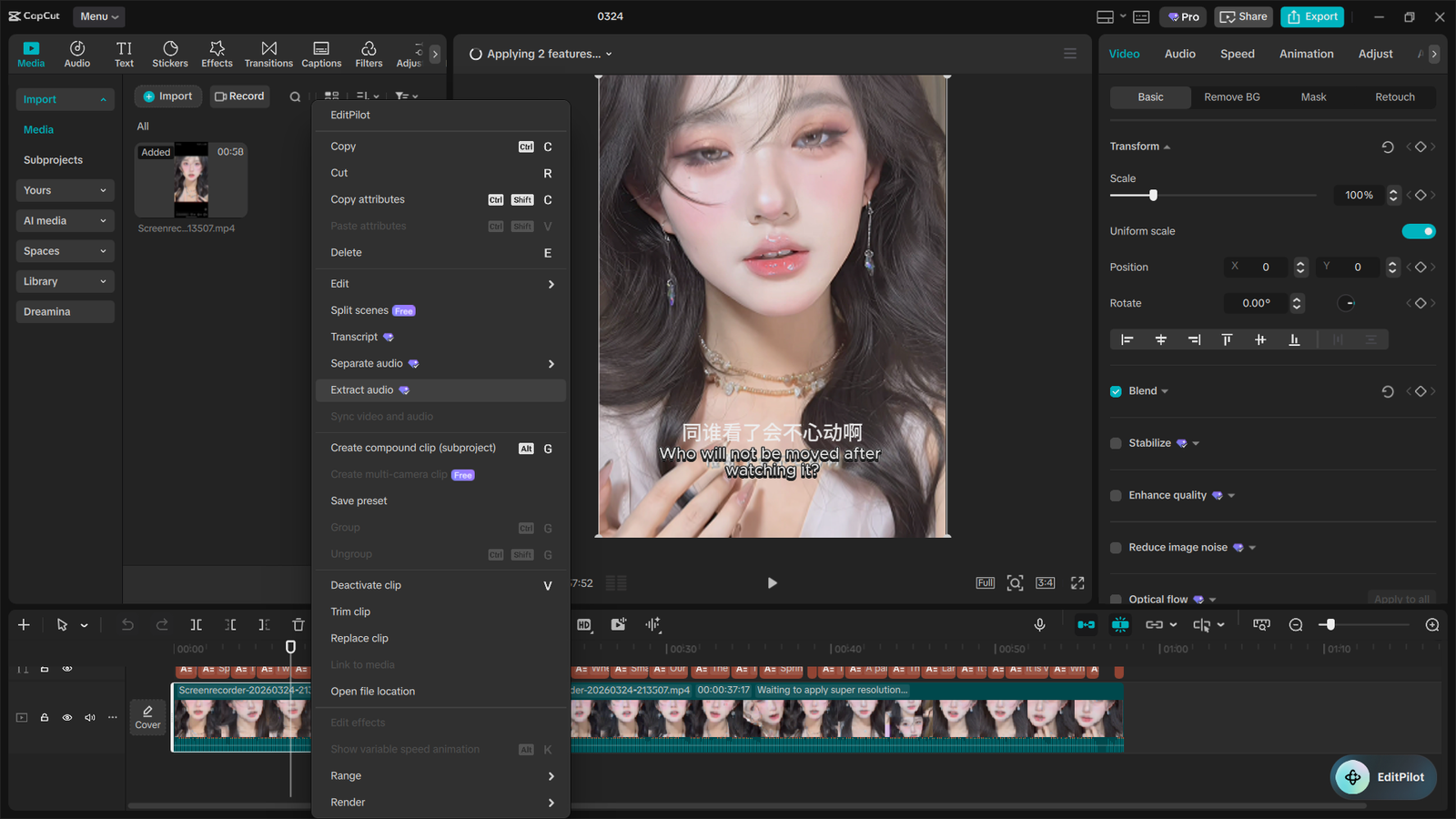
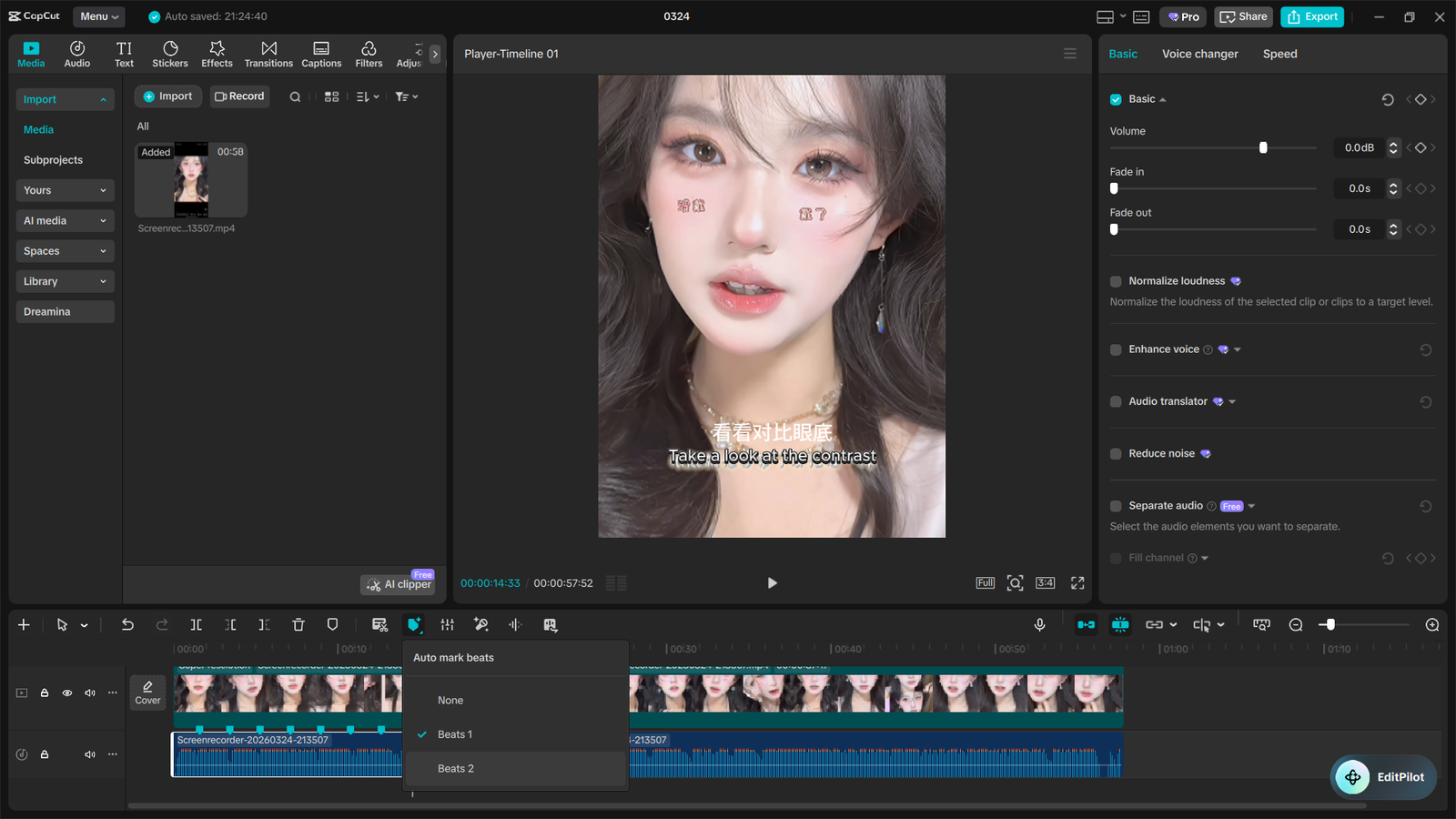
Make sure your visual cuts, transitions, or text pop-ups align exactly with those yellow dots. This creates a highly satisfying, rhythmic viewing experience that naturally encourages viewers to re-watch the video multiple times.
5. Polishing with Cinematic Color Grading
Raw phone footage often looks flat, gray, and uninspiring. A quick, professional color grade can make your smartphone video look like it was shot on a high-end cinema camera.
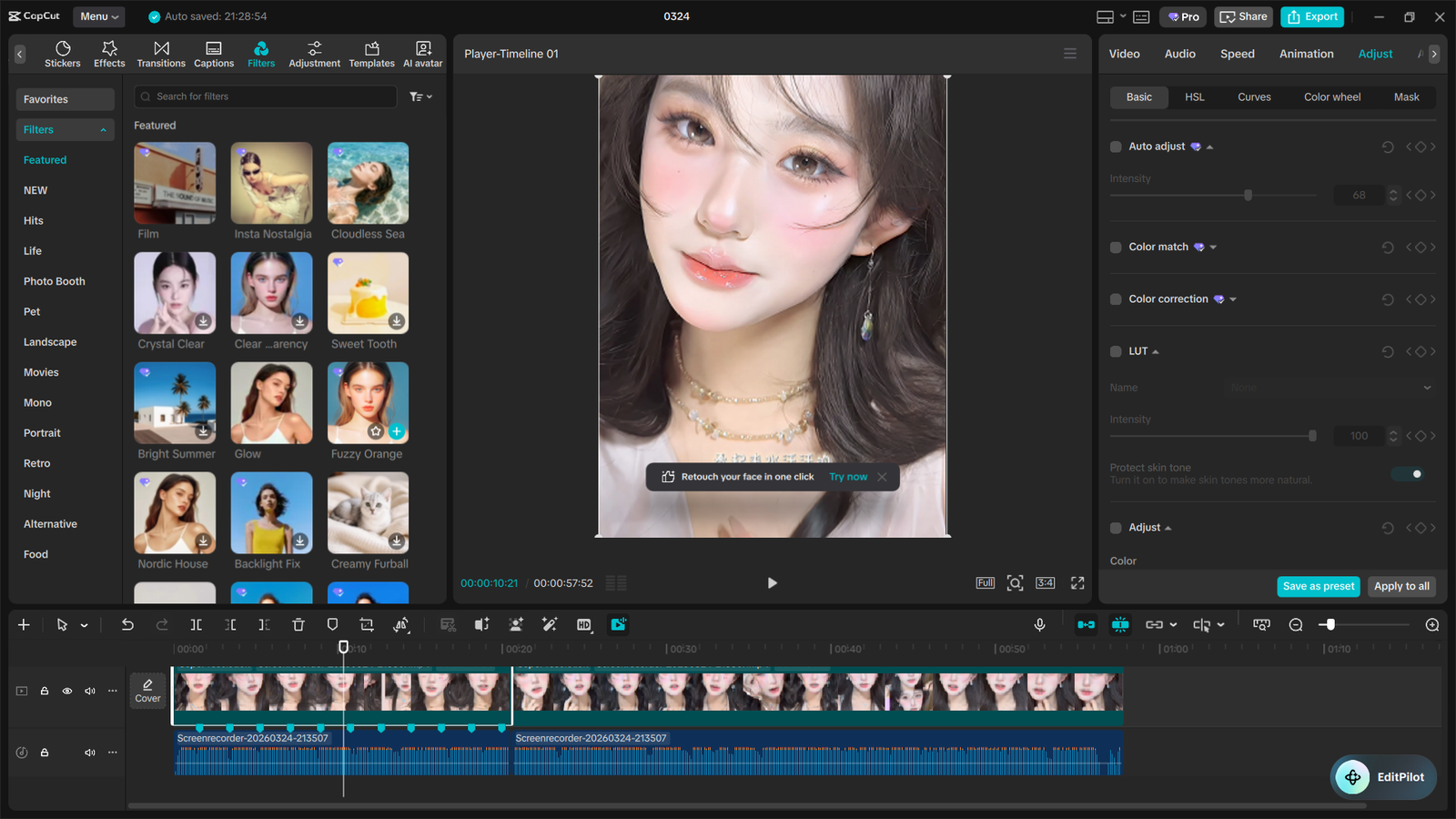
Navigate to the “Adjust” tab in your toolbar and slightly bump up the contrast, saturation, and sharpness. Be careful not to overdo it—you want vibrant, eye-catching colors, not glowing, unnatural skin tones.
For a much faster fix, apply one of CapCut’s premium cinematic filters. The highest-quality filters that don’t degrade your video resolution are reserved for Pro users. This makes upgrading a highly cost-effective way to improve your video quality without buying a $2,000 camera.
Secret Pro-Level Hacks for Maximum Retention
Want to take your editing even further and blow past your competition? Here are a few rapid-fire, advanced techniques that top-tier creators use daily.
- The B-Roll Sandwich: Never let a standard “talking head” video stay on screen for more than five seconds. Use the “Overlay” feature to place engaging B-roll footage over your main video while your original audio continues playing underneath.
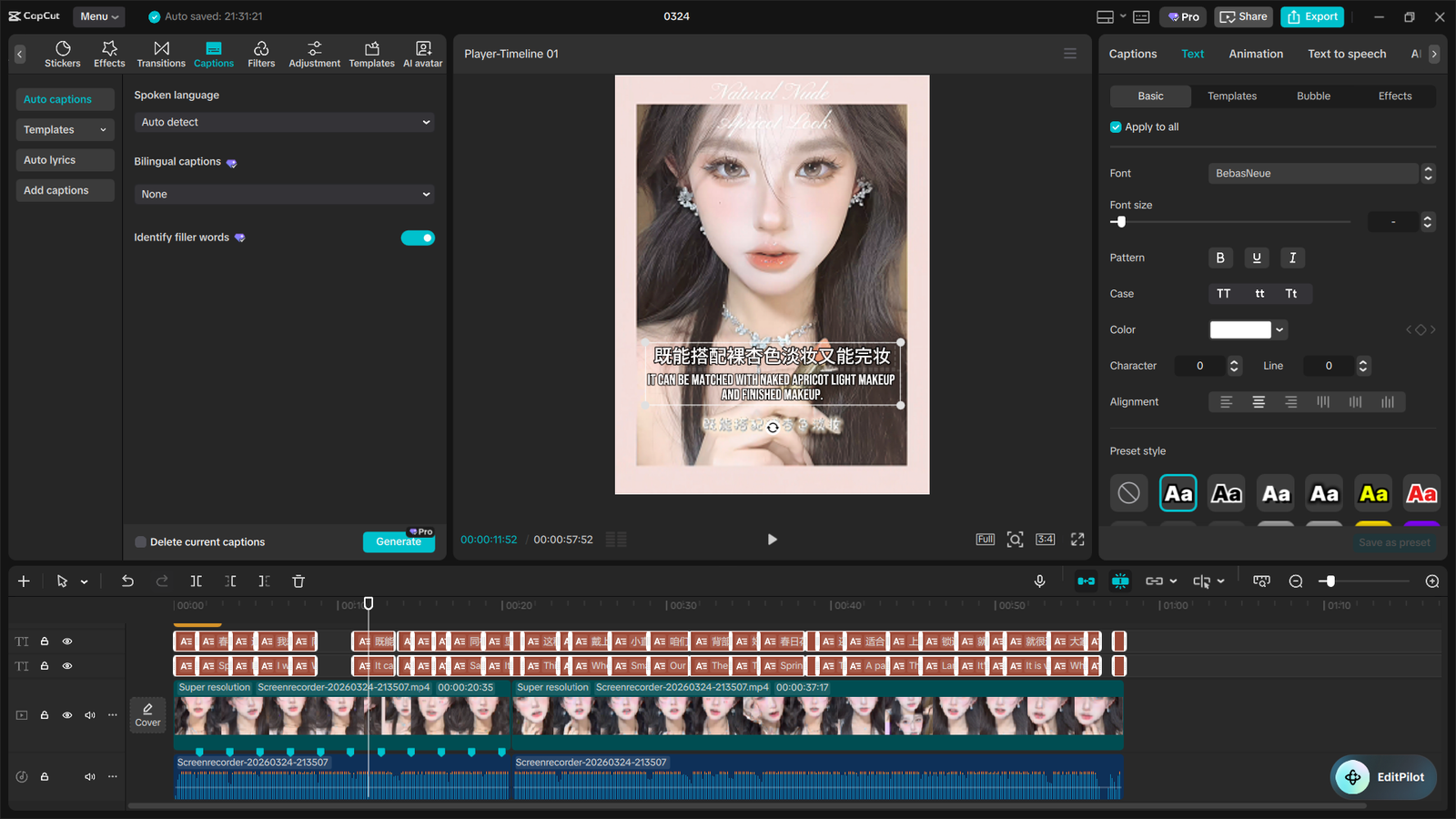
- Dynamic Auto-Captions: Over 80% of users scroll with their sound off initially. Use CapCut’s auto-captions, but don’t just leave them plain and static. Animate them to highlight word-by-word, keeping the viewer’s eyes actively tracking the text as you speak.
- Subconscious Sound Effects (SFX): Add subtle “swoosh” sounds during fast transitions, or a tiny “pop” when text appears on the screen. This subconscious audio layering dramatically increases viewer engagement and makes the video feel incredibly premium.
- Remove Breathing: Comb through your timeline and literally cut out every single breath you take between sentences. It feels unnatural while editing, but it makes the final video incredibly fast-paced and impossible to click away from.
As you get more serious about your content, you might wonder if you should move from your phone to your desktop. CapCut offers brilliant versions for both, but they serve different purposes.
CapCut Mobile is perfect for on-the-go editing, quick trend jumping, and shooting directly within the app. It is highly intuitive and allows you to go from filming to publishing in minutes.
CapCut PC (Desktop) is for the heavy lifters. It offers precise mouse-and-keyboard control, complex timeline management for multiple layers of B-roll, and faster rendering times for 4K footage.
The secret? You don’t have to choose. By upgrading your account, you get seamless cloud storage. You can start a rough cut on your phone while on the train, and finish the complex keyframing and color grading on your PC at home.
Conclusion: Ready to Dominate the FYP?
Editing viral TikToks is not about luck; it is a highly calculated, strategic process. It requires sharp visual hooks, dynamic keyframe movements, precise audio syncing, and high-retention visual effects.
By applying the specific techniques outlined in this guide, you are already miles ahead of the vast majority of creators on the platform. But to truly edit without limitations and access the best effects, you need the right tools in your arsenal.
Do not let software restrictions hold back your creative potential or your view count. You can securely upgrade to CapCut Pro today through SEAMAE. We guarantee 100% authentic keys at the market’s lowest prices, delivered instantly to your inbox. Grab your premium license now, start editing like an absolute pro, and watch your channel growth skyrocket!
Main Content
Frequently Asked Questions (FAQs)
1. How do I edit a TikTok video on CapCut to get more views?
To get more views, focus on audience retention. Start with a strong 3-second visual hook, use jump cuts to remove “dead air,” and apply dynamic keyframes to keep the footage moving. Syncing your edits to trending audio using the Match Cut tool will also significantly boost viewer engagement.
2. Do I need CapCut Pro to edit viral TikTok videos?
While the free version is great for beginners, top creators use CapCut Pro to access advanced 3D transitions, cinematic color grading, and premium body-tracking effects. You can easily upgrade to a highly discounted CapCut Pro license through SEAMAE to unlock these premium tools without paying expensive monthly fees.
3. What are keyframes in CapCut and how do I use them?
Keyframes allow you to create custom, smooth animations within a static video clip, such as a slow zoom or a pan. Simply place a keyframe (the diamond icon) at the start of your desired movement and another at the end. CapCut will automatically animate the space between them, making your video look much more professional.
4. Is it better to edit TikToks on CapCut Mobile or CapCut PC?
Both versions are powerful, but they serve different needs. CapCut Mobile is ideal for quick edits and jumping on trends directly from your phone. CapCut PC is better for heavy lifting, like managing multiple layers of B-roll or color grading. Pro users can use cloud storage to seamlessly switch between both platforms.
5. How can I perfectly sync my video clips to the music in CapCut?
Use the “Match Cut” (or Beats) tool. CapCut will automatically analyze your chosen audio track and generate yellow dots directly on the heavy beats. By aligning your visual transitions, cuts, and text pop-ups exactly with these dots, you create a highly satisfying, rhythmic video that keeps viewers watching.