
CapCut is easy to download and hard to size up. Before you commit, you probably want to know whether your exports will carry a watermark, what the paid plans add, whether it is safe to use, and whether you can still use it in the United States. This guide answers those questions and helps you decide whether CapCut fits your videos, your budget, and your comfort level with a ByteDance-run service.
You will get a tour of the editor and its AI tools. You will also get a plan-by-plan comparison with U.S. pricing and credit allowances that SEAMAE checked in the official U.S. app on October 10, 2026 (CapCut in-app pricing; prices change often). After that come a five-question upgrade test, a safe-use checklist, and a first-hour walkthrough. We also cover when CapCut is the wrong tool, which most beginner guides skip.
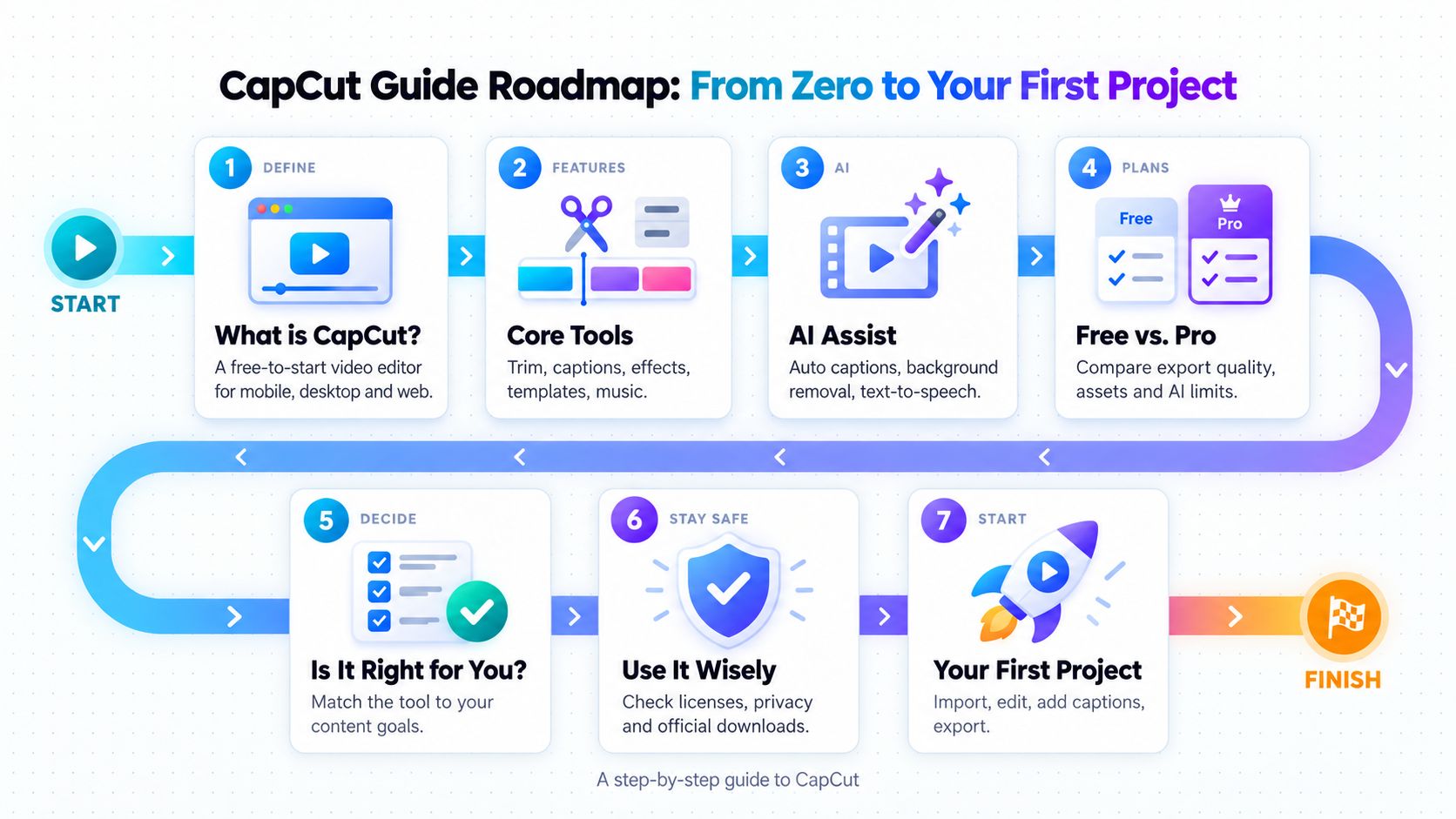
What Is CapCut?
CapCut is a video editing app from ByteDance, the company behind TikTok. It runs on iPhone, Android, Windows, macOS, and in a web browser, and it lets you trim clips, add captions, music, and effects, and export finished videos. The core app is free, with paid plans for extra tools and storage.
The CapCut app is built for short, vertical, social-first video: TikToks, Reels, and YouTube Shorts. Its strength is speed. Templates, auto captions, and one-tap AI helpers let a beginner finish a polished clip in minutes instead of learning a traditional timeline editor.
CapCut at a glance
| TITLE | Describe |
|---|---|
| What it is | Video editor (mobile app, desktop app, web app) |
| Developer | ByteDance; per CapCut’s U.S. policy (updated April 15, 2026), U.S. services are operated by TikTok USDS Joint Venture LLC |
| Platforms | iOS, Android, Windows, macOS, web; a dedicated iPad app was described as beta on CapCut’s help page: https://www.capcut.com/help/capcut-for-ipad |
| Price model | Freemium: Free, Standard, Pro, Teams, Ultra |
| Best at | Fast short-form video, auto captions, templates |
| Weak at | Advanced color grading, complex audio, heavy team workflows |
| Data | An online service that collects account, content, and device data |
Who Makes CapCut and How It Started
CapCut began in China as JianYing (剪映), a video editor tied to ByteDance’s short-video ecosystem. (Meaning of the Name) The Chinese name “JianYing” is generally understood to mean “cut and project” (剪 = cut, 映 = project/film), accurately reflecting its video editing function. The international version, CapCut, was developed to serve users outside of China, particularly the short-form content creator community on TikTok.
2018: The app launched in China under its original name, JianYing.
2019: JianYing launched in China for iPhone and Android, integrated with ByteDance’s short video ecosystem/Douyin.
2020: ByteDance launched the product internationally, initially under the name ViaMaker, later renamed CapCut and becoming globally popular.
As of October 2026, this app had over 1 billion downloads on Google Play.
Ownership and operation matter to many readers. Because CapCut is a ByteDance product, it was swept up in the U.S. legal fight over TikTok. We cover that timeline in the safety section.
What CapCut Is Not
Knowing the edges helps you avoid disappointment:
- Not a social network. You make videos in CapCut and publish them elsewhere. It does not give you an audience.
- Not a full professional suite. It handles fast, short edits well. It is not built for broadcast-grade color work, complex audio mixing, or large multi-person productions.
- Not an offline-only tool. It is an online service, so accounts, cloud features, templates, and many AI tools involve remote processing.
- Not a commercial-license guarantee. A free or trending asset inside the app is not automatically cleared for ads.
What You Can Do With the CapCut Video Editor
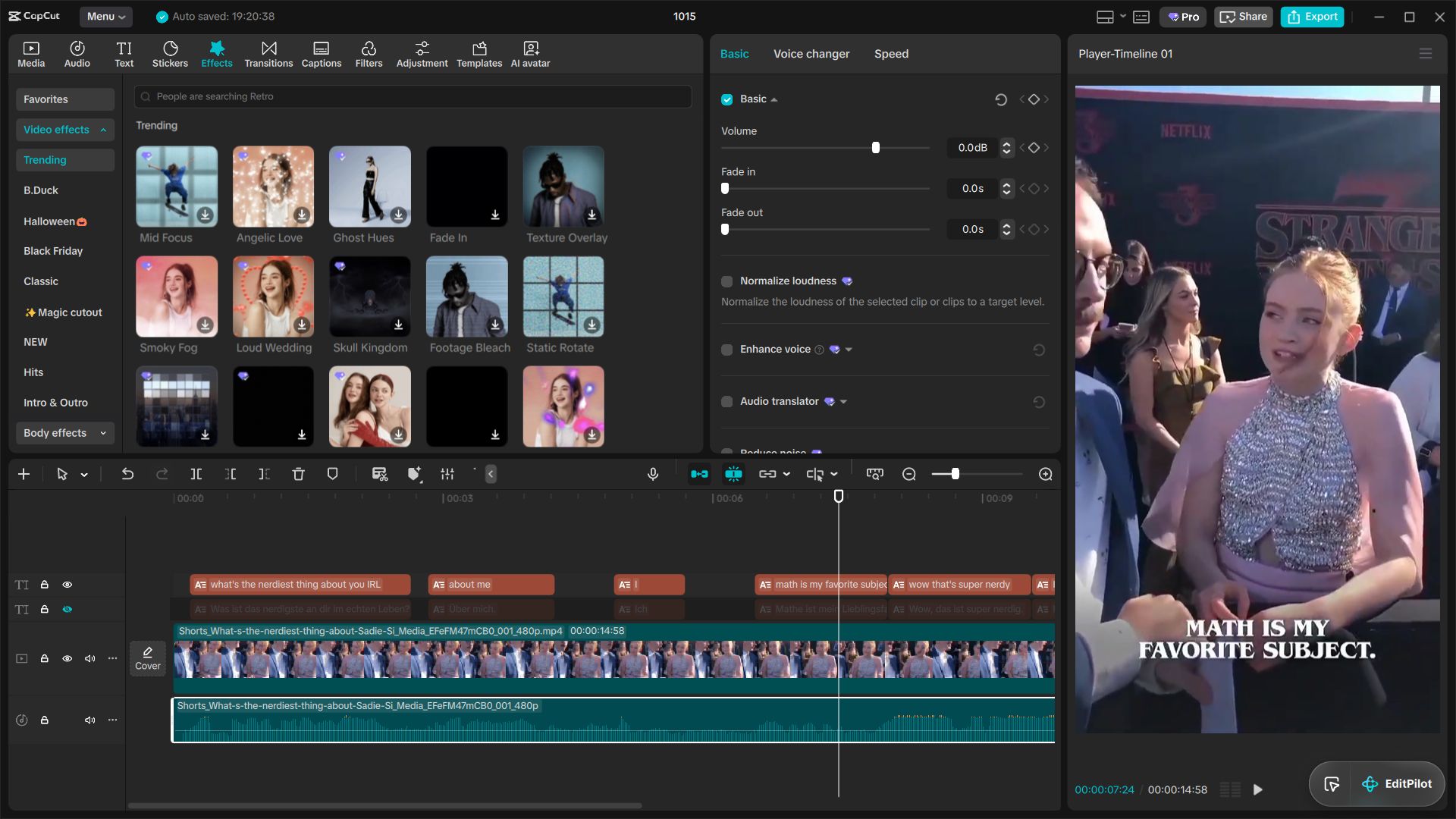
The CapCut video editor is timeline-based. You can trim dead air, split a clip at any point, reverse it, duplicate it, and reorder scenes by dragging. Speed controls cover slow motion and fast-forward, and speed curves let you ramp in and out so cuts land on the beat of a song. Keyframes add simple zooms and pans, which is a quick way to bring a still photo to life.
Layering works through a main track plus overlay tracks. Use this rule of thumb: the main track carries the story; overlays carry the branding. Put your footage on the main track. Put logos, price tags, stickers, and picture-in-picture clips on overlay tracks, where you can adjust them without disturbing the cut.
Text, Captions, Music, and Effects
The text editor controls font, color, spacing, alignment, and animation. You can import your own fonts to keep a brand look consistent. Auto captions turn speech into timed subtitles you can restyle. Always proofread them. Accents, background music, overlapping speakers, and industry terms are common failure points.
You can layer music, sound effects, and voiceover on separate tracks, and extract audio from another clip. Treat transitions as punctuation: use them to mark a change of scene, not to fill time. Overuse makes videos look busy and less trustworthy. Before using any song in a paid ad, read the licensing guidance later in this guide.
Templates for Faster Videos
A template is a ready-made arrangement of effects, transitions, timing, and placeholders. You drop your own clips and text into it. Templates shine for repeatable formats, such as a weekly product spotlight, where only the footage changes.
There are two trade-offs. Heavy template use can make your content look like everyone else’s. And some premium templates may add a watermark or require an upgrade package.
Exporting and Sharing to Social Platforms
Match the export to the destination. Vertical platforms such as TikTok, Reels, and Shorts use 9:16, commonly 1080 × 1920. Longer YouTube videos use 16:9. CapCut exports common formats such as MP4 and MOV and can share directly to platforms such as TikTok and YouTube. On web and desktop you can usually adjust resolution, frame rate, codec, and bitrate. A 9:16 edit rarely crops cleanly into 16:9, so build separate layouts if you need both.
Example workflow: a small shop’s 9:16 product video, from raw clip to export
- Film the product vertically on a phone, in steady light, with the product centered.
- Import the clips and trim every pause and false start.
- Split the clip where you want a cut, and add a slight zoom on the hero shot.
- Place the logo and price on an overlay track.
- Generate auto captions, then correct spelling, product names, and punctuation.
- Add licensed music at low volume under the voice.
- Export at 1080 × 1920 as 9:16 and preview the file on your phone before posting.
CapCut AI Tools Explained
CapCut AI falls into two tiers. Everyday AI helps with the repeat tasks in almost every video. Advanced generative AI creates new avatars, voices, or footage and usually costs credits.
Everyday AI: Auto Captions, Background Removal, Noise Reduction
- Auto captions convert speech to timed text. They can usually be used on the free plan within limits, and some captioning may run on-device rather than using cloud credits. Each account may use the free auto subtitle service only once per month.
- Background removal (cutout) separates a person or object from the background without a green screen. It helps with product videos and thumbnails but struggles with hair edges, glass, and fast motion.
- Noise reduction reduces wind, fans, and crowd noise so speech is clearer. Heavy use can make a voice sound slightly synthetic, and it cannot rescue badly distorted audio.
Advanced AI: Avatars, Voice Effects, AI-Generated Video
- AI avatars create a virtual presenter from text, with a library of AI voices. Motion and expression can look mechanical.
- Voice effects and premium voiceover change or generate speech. They may mispronounce names or foreign terms.
- Script-to-video and AI image generation assemble scenes from an idea or script. Results are hard to control precisely, so expect manual cleanup.
How AI Credits Work and Why Limits Exist
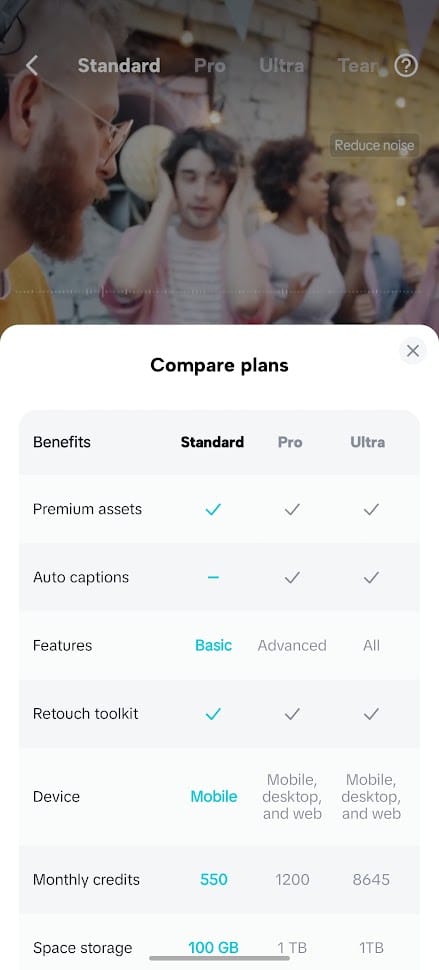
Credits work like AI coins. Each time you confirm a premium generation, CapCut deducts credits, and the app shows the cost before you generate. One credit is valued at $0.01, so 1,200 credits equal $12.
Monthly credits by plan (U.S. app, checked by SEAMAE on October 10, 2026): CapCut Free = 0, CapCut Standard = 550, CapCut Pro = 1,200, CapCut Teams = 1,200, CapCut Ultra = 8,645. Free users may occasionally receive event credits.
- Credits come from three places: your subscription, event or promotion rewards, and credits you buy directly.
- Spending order is subscription credits first, then activity credits, then purchased credits.
- Subscription credits last one billing cycle. Purchased credits last two years.
- The credit system is described as applying to CapCut Web and Desktop (it can also be used on the mobile app).
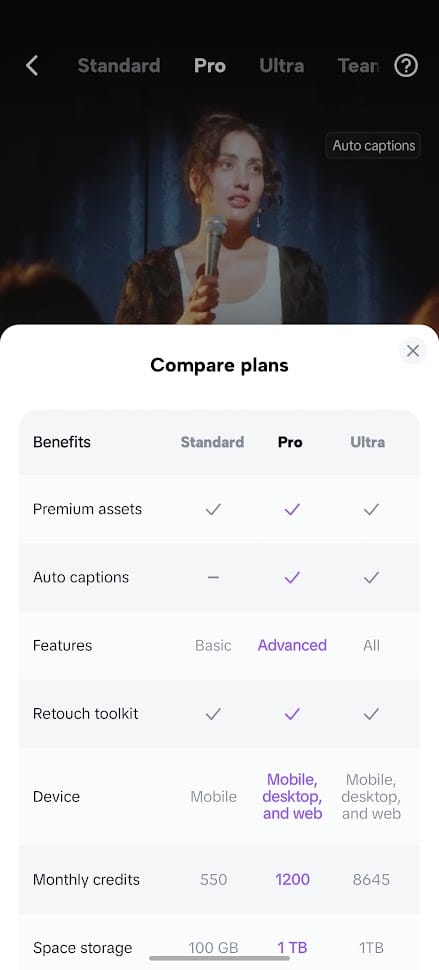
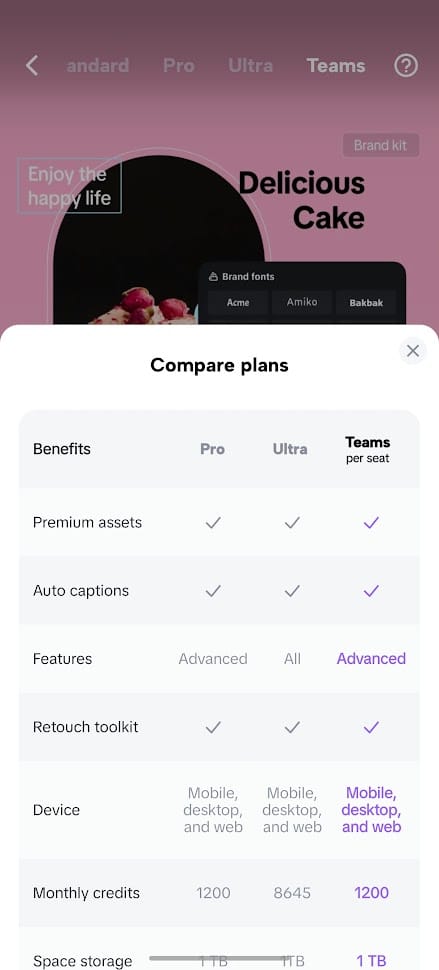
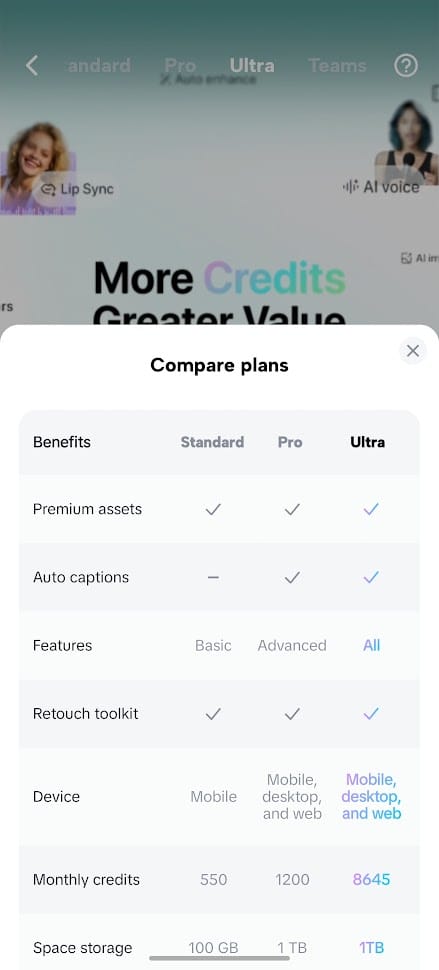
Limits exist because generative AI costs more server resources than ordinary editing. A practical rule: use included quotas for captions, cleanup, and cutouts, and spend credits only on the final generations that matter.
| AI tool | What it does | Plan / cost behavior | Watch for |
|---|---|---|---|
| Auto captions | Speech to timed subtitles | Free within limits; heavier use may need a paid plan | Proofread names and jargon |
| Background removal | Separates subject from background | Quota-based; may use credits on web/desktop | Hair, glass, fast motion |
| Noise reduction | Cleans ambient noise | Basic version included in Standard and above | Can sound artificial |
| Camera tracking | Anchors text or graphics to moving subjects | Pro and above | Needs steady, clear footage |
| Voice isolation / AI voice effects | Separates voice from music; changes or generates voice | Pro and above; premium voiceover uses credits | Mispronounced names |
| AI avatars | Virtual presenter from text | Credits (Pro, Ultra) | Robotic motion |
| Script-to-video, AI images | Generates scenes or stills | Credits; heavy use favors Ultra | Hard to control details |
CapCut App, Desktop, and Web: Which Version to Use
Choose by project size and where your footage lives.
| TITLE | Mobile app | Desktop | Web |
|---|---|---|---|
| Best for | Shoot-and-post edits on the go | Longer, multi-layer, high-quality projects | Quick edits on any computer, no install |
| Strengths | Fast; footage already on your phone | Strongest hardware use; better for heavy AI work | No install; imports from computer, cloud drives, or a phone via QR code |
| Limits | Smaller screen; fine control is harder | Needs a capable computer | Needs internet; limited by browser and connection |
| Internet needed? | Cloud features and templates, yes | Not constantly | Yes |
Moving a Project Between Devices
Use the same account everywhere and turn on cloud saving before you close the project. Then reopen it from the project list on the other device. For heavy projects, export a draft from desktop rather than trusting the project file to carry every font, effect, and asset across platforms. Keep large original clips in a cloud folder or on an external drive, and re-import them if a synced project comes in with missing media. Never rely on sync alone for important work. Export a backup video and keep the source files separately.
Is CapCut Free? What Each Plan Includes
Yes, CapCut has a free plan that covers trimming, splitting, speed and audio edits, basic filters and templates, some basic AI tools, and 1080p export. Limits include locked effects and templates, capped AI use, possible watermarks, no 4K, and no cloud storage. Paid plans (Standard, Pro, Teams, Ultra) remove those limits in steps.
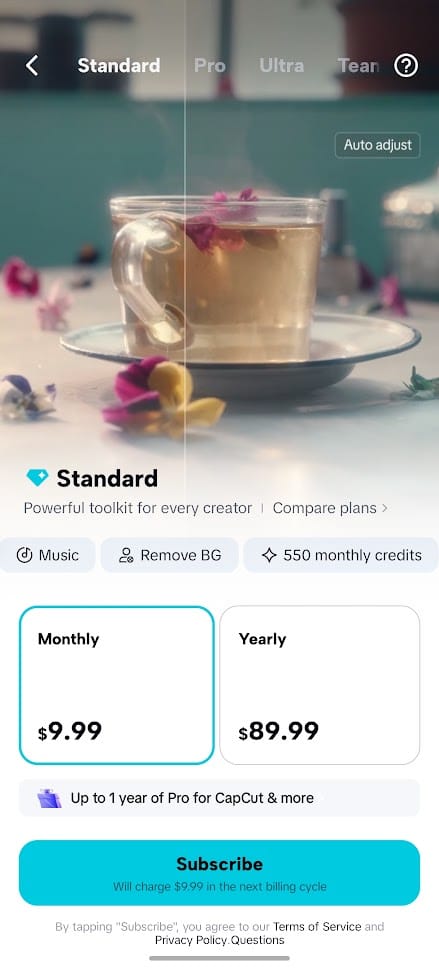
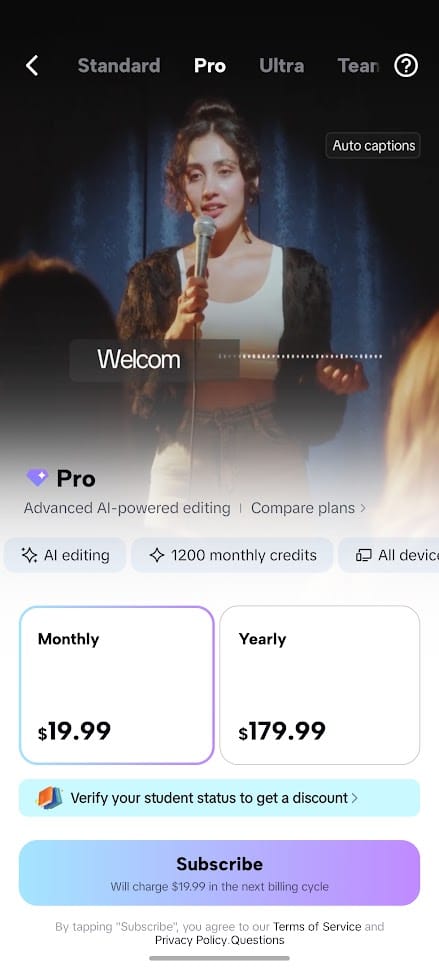
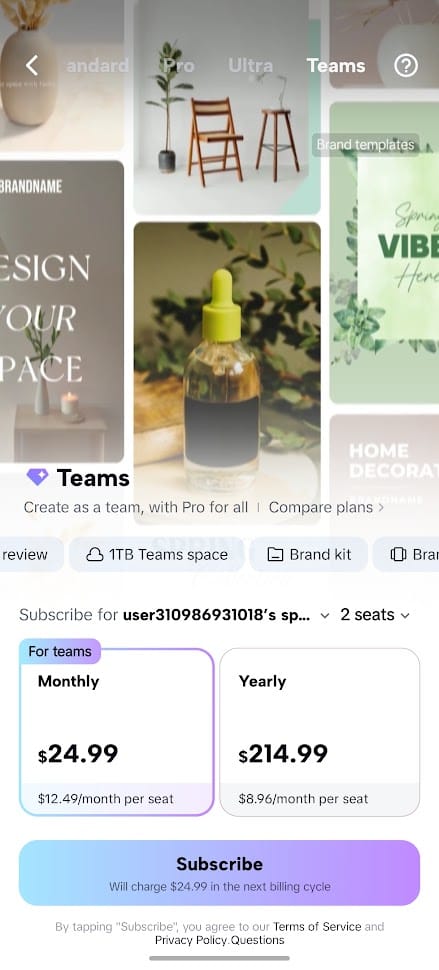
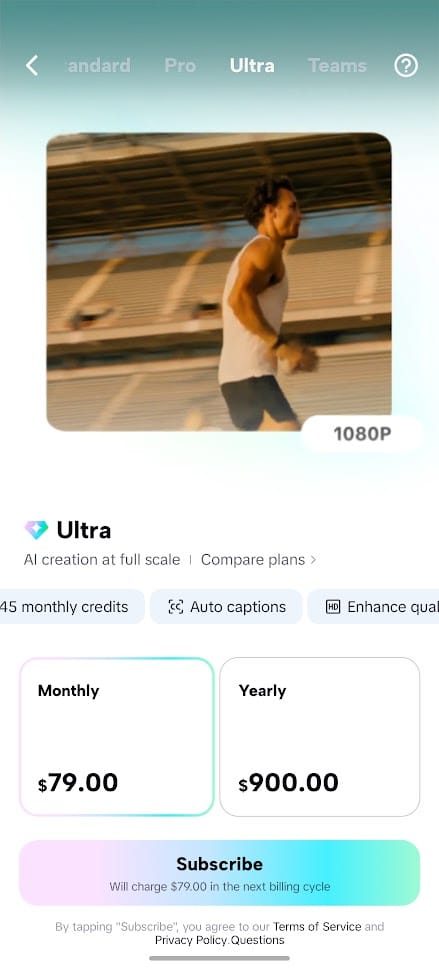
(Plan details checked by SEAMAE in the U.S. app on October 10, 2026)
What the Free Plan Includes
The free plan costs $0 and fits short videos for TikTok, Facebook, Reels, or personal use. You typically get cut, merge, split, speed, and audio tools; a selection of free filters, effects, fonts, and templates; some basic AI tools; and common export quality up to 1080p, depending on your device and project. Features are not identical across platforms.
Watermarks, Export Limits, and Locked Features
The main free-plan limits:
- Many effects, templates, fonts, stock items, and AI tools are locked.
- Some AI features are capped or need credits, and the free plan has 0 monthly credits.
- Cloud storage and sync are not included.
- Export is capped at 1080p, with no 4K.
Watermarks are less simple than most guides suggest. Free is not always watermarked: a clean export can be possible if you use only free assets and remove the default end clip. The watermark mostly comes from that default ending or from premium templates and assets. On Standard, watermark removal is mainly a mobile benefit.
Standard, Pro, Teams, and Ultra at a Glance
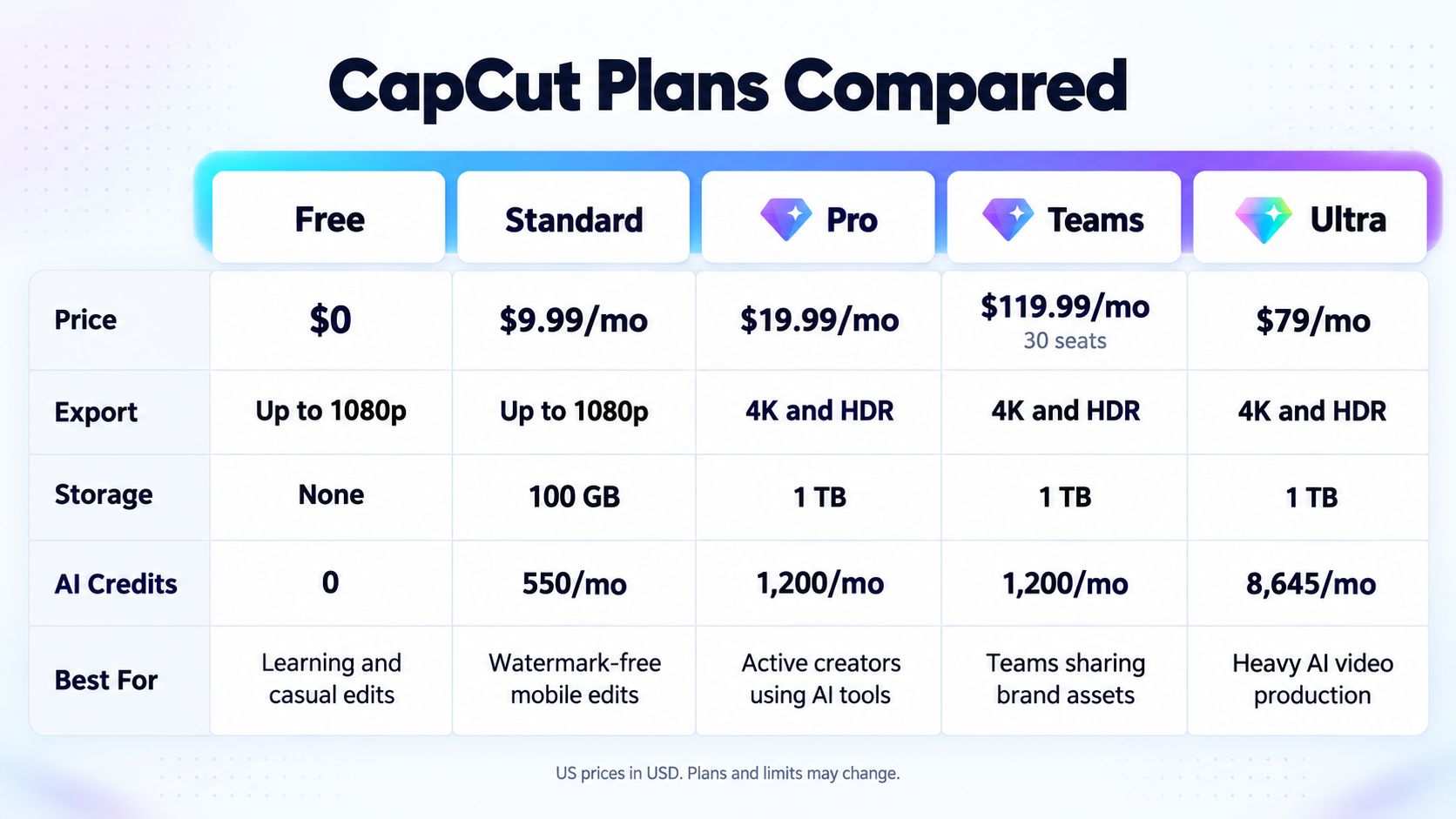
| Plan | U.S. price | Max export | Cloud storage | credits / mo | Best fit |
|---|---|---|---|---|---|
| Free | $0 | 1080p | None | 0 | Hobby and short personal videos |
| Standard | About $9.99/mo or $89.99/yr | 1080p | About 100 GB | 550 | Mobile-first users who want fewer locks |
| Pro | About $19.99/mo or $179.99/yr | Up to 4K, 60 FPS, HDR (device, footage, and region dependent) | Up to 1 TB | 1,200 | Solo creators and small businesses |
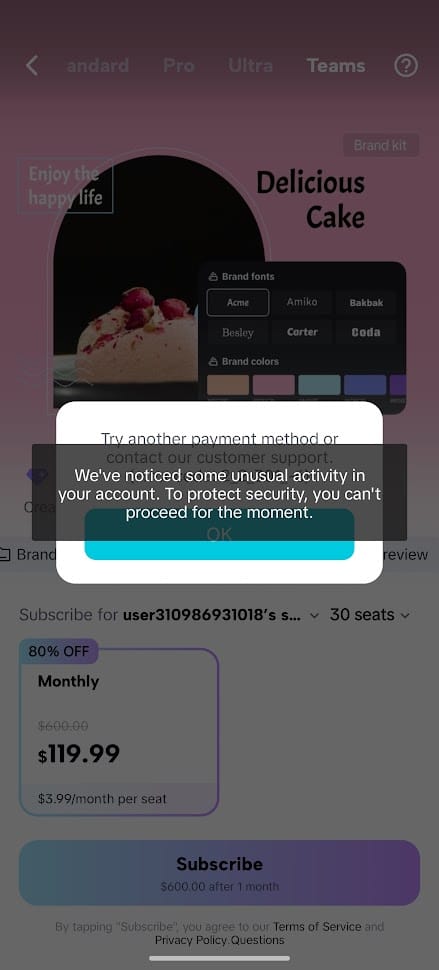
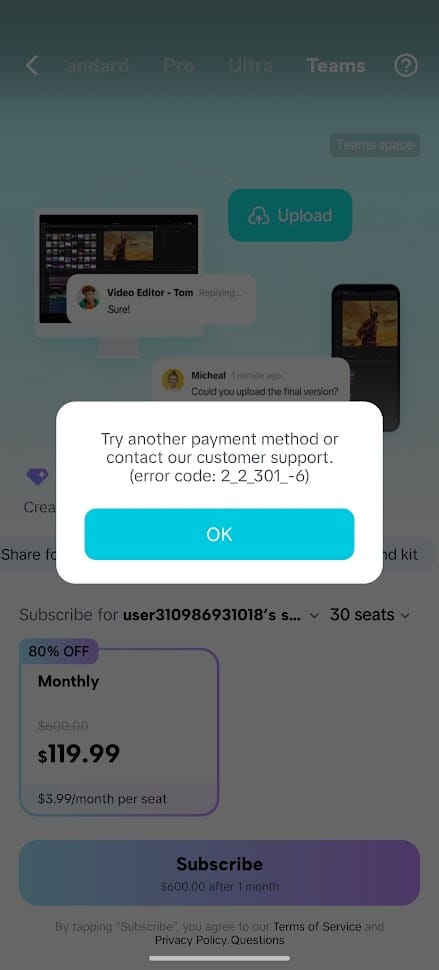
| Teams | Varies by seats and cycle; in-app promo seen: $119.99 first month for 30 seats, then $600/mo for 30 seats | As Pro | 1 TB | 1,200 | Agencies, shops, and marketing teams |
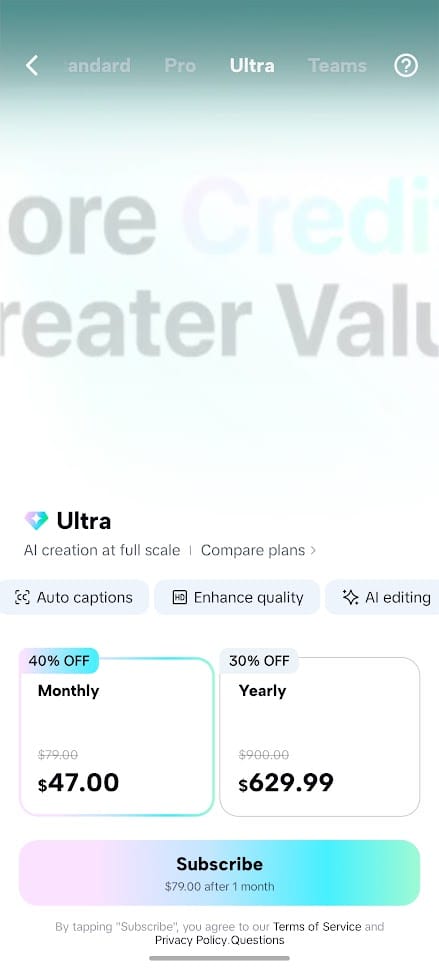
| Ultra | $79/mo or $900/yr list; in-app U.S. mobile seen: $47/mo or $629.99/yr | As Pro | 1 TB | 8,645 | Heavy AI-video producers |
Prices and promotions change, and in-app pricing differs from list pricing. The Teams and Ultra figures were observed by SEAMAE by purchasing in the U.S. app; promos can error out if you create multiple accounts.
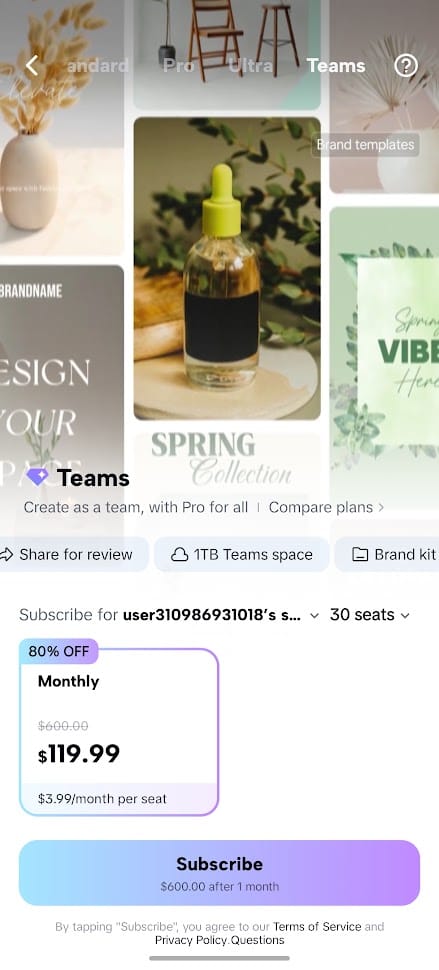
Short notes on each paid tier:
- CapCut Standard is the middle step. It adds a broader library of templates, effects, and fonts, basic AI tools such as noise reduction and loudness adjustment, and some backup space. It skips the advanced AI set, 4K, and heavy AI-video use.
- CapCut Pro is the broadest plan for most individuals. It adds multi-platform editing, premium templates, collaboration tools, advanced AI (camera tracking, auto captions, AI avatars, generated content), 4K export, and 1 TB of cloud storage.
- CapCut Teams adds shared team spaces, brand libraries, team templates, and review and approval flows. At the observed promo, $600 for 30 seats works out to about $20 per seat per month, which is roughly the cost of a single Pro plan. That arithmetic suggests you would be paying for administration features, not extra editing power.
- CapCut Ultra adds enterprise-style controls (such as SSO), custom creative resources, priority support, and a very large credit pool. It only makes sense if credits are consumed constantly.
CapCut For You: https://seamae.store/shop/capcut/
Commercial Use: What CapCut Pro Does and Doesn’t Cover
Pro includes assets marked for commercial use, along with team templates and brand libraries. That is not a blanket license. Standard does not turn every asset into a commercial one either. Before running an ad or delivering client work:
- Check the license label on every song, template, font, stock clip, and effect.
- Do not assume trending music is cleared for ads on all platforms.
- Remember that rights can vary by region, platform, content type, or asset-specific terms.
- Read CapCut’s current commercial terms.
Is CapCut Pro Worth It? A Decision Framework
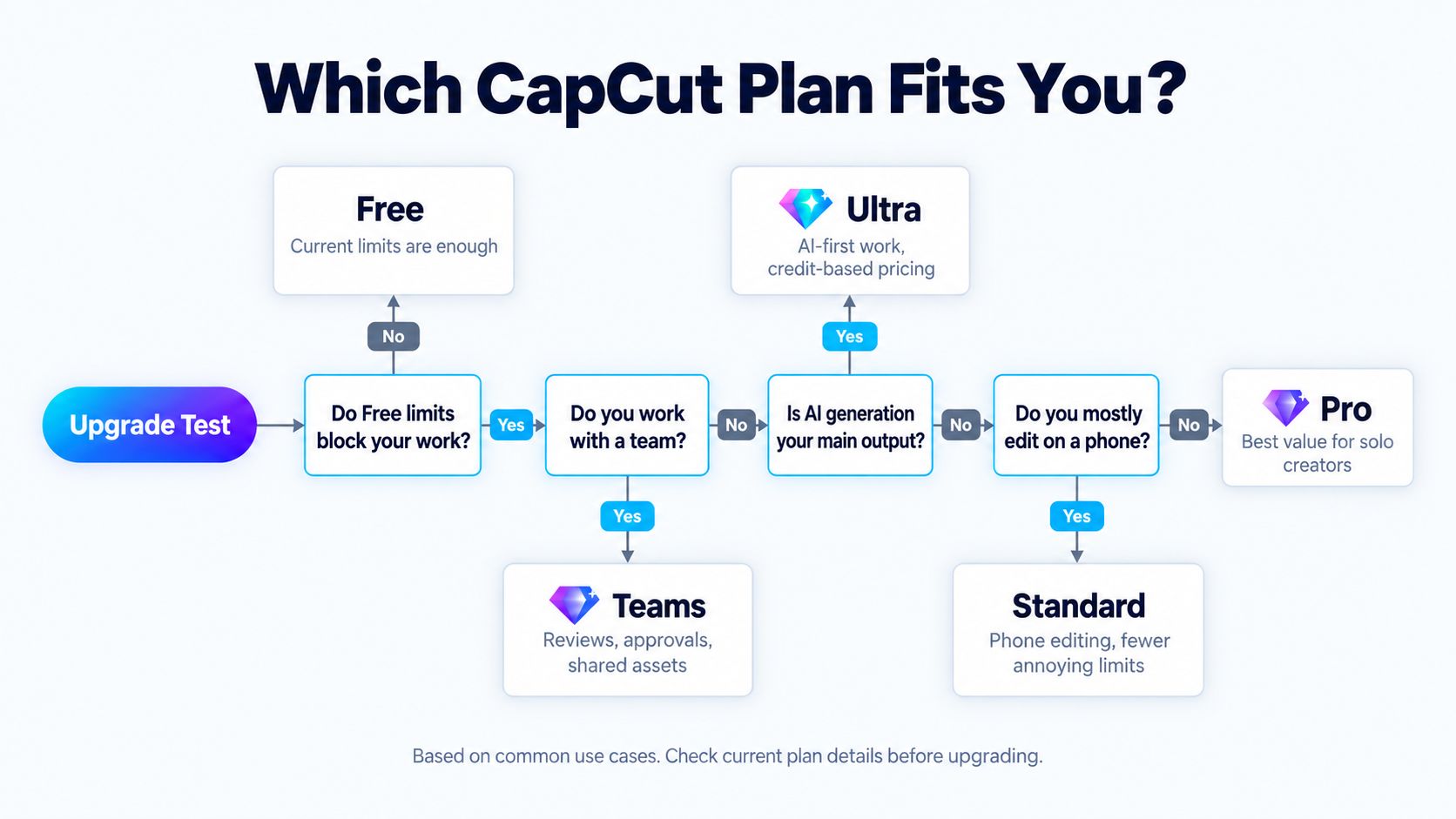
CapCut Pro is worth it if you publish regularly and rely on 4K export, AI captions or cutouts, cloud sync across devices, or commercially labeled assets. It is usually not worth it for occasional hobby edits that the free plan handles. Test it against your own limits before paying, using the five questions below.
Five Questions to Ask Before You Upgrade
Call this the CapCut Upgrade Test. It is a rule of thumb, not a formula. Answer each question yes or no.
- Clean export: Do you need exports free of the watermark or premium-asset locks?
- Resolution: Do you need 4K or HDR output?
- AI frequency: Do you use captions, cutouts, tracking, or AI voice most weeks?
- Multi-device: Do you edit across phone, desktop, and web, and need projects to sync?
- Commercial: Is the video for ads, clients, or a brand, where licensing matters?
How to read your score:
- Mostly no: Stay on Free.
- Yes to Question 1 only, and you edit on a phone: Consider Standard.
- Yes to two or more of Questions 2 through 5: Pro is likely worth it.
- Multiple people shoot, edit, and approve: Look at Teams.
- Most of your output is AI-generated video: Look at Ultra.
Scenarios: Hobbyist, Creator, Small Business, Team
| Use case | plan | Why | Watch-out |
|---|---|---|---|
| Hobbyist posting occasionally | CapCut Free | Covers core editing at 1080p | Default end clip and locked assets |
| Phone-only creator wanting a cleaner export | CapCut Standard | Removes the most annoying limits cheaply | No 4K or advanced AI |
| Regular creator (TikTok, YouTube, ads) | CapCut Pro | 4K, AI tools, cloud, multi-device | Not every asset is commercially cleared |
| Small business producing product videos | CapCut Pro | Templates, auto captions, cutouts, multi-device editing | Check asset licenses for ads |
| Agency or team with shooter, editor, approver | CapCut Teams | Shared spaces, brand library, review flow | Adds admin cost solo users never use |
| High-volume AI-video producer | CapCut Ultra | Large credit pool | Credit use can burn fast |


CapCut Pro 2 Year – CapCut Account – GLOBAL ($69.8)
Original price was: $359.90.$69.80Current price is: $69.80. CapCut Pro 2 Year – CapCut Account – GLOBAL
Original price was: $359.90.$69.80Current price is: $69.80. CapCut Pro 1 Year – CapCut Account – GLOBAL ($49.8)
Original price was: $179.90.$49.80Current price is: $49.80. CapCut Pro 1 Year – CapCut Account – GLOBAL
Original price was: $179.90.$49.80Current price is: $49.80. CapCut Pro 6 Months – CapCut Account – GLOBAL ($29.8)
Original price was: $89.90.$29.80Current price is: $29.80. CapCut Pro 6 Months – CapCut Account – GLOBAL
Original price was: $89.90.$29.80Current price is: $29.80. 
CapCut Pro 3 Months – CapCut Account – GLOBAL ($19.8)
Original price was: $48.00.$19.80Current price is: $19.80. CapCut Pro 3 Months – CapCut Account – GLOBAL
Original price was: $48.00.$19.80Current price is: $19.80. CapCut Pro 1 Month – CapCut Account – GLOBAL
Original price was: $19.90.$8.90Current price is: $8.90. CapCut Pro 7 Days – CapCut Account – GLOBAL
Original price was: $9.90.$0.90Current price is: $0.90.Cost Math: Monthly vs. Annual vs. Skipping Pro
At the checked U.S. prices:
- Pro monthly: $19.99 × 12 = $239.88 per year.
- Pro annual: $179.99, which is about $15.00 per month, roughly $59.89 less than twelve monthly payments.
- Break-even: $179.99 ÷ $19.99 is about 9, so if you will need Pro for nine months or more, annual wins. For a short campaign, month-to-month is cheaper.
- Standard annual: $89.99, or about $7.50 per month, if Pro features are overkill.
- Skipping Pro: $0, which makes sense when your answer to the upgrade test is mostly no.
Worked example: a store making 20 to 40 product videos a month. A small retail shop that uses branded templates, auto captions, background removal, and edits on both phone and desktop would typically start with Pro. At the annual price (about $15.00 per month), 30 videos a month works out to about $0.50 per video before time savings, which we have not measured. Move up to Teams only when a shooter, an editor, and an approver all need to work in the same space. Ultra only becomes sensible when most output is AI-generated video and credits are used regularly.
When Standard, Teams, or Ultra Fits Better
- Standard fits if you edit mostly on a phone and only want to remove the most annoying limits.
- Teams fits when review, approvals, shared brand assets, and seat management are part of how you work.
- Ultra fits when AI generation is your core output and you accept credit-based pricing.
- Pro remains the better value for one person editing, captioning, and publishing alone.
CapCut US – USD
Is CapCut Safe? Privacy, Data, and US Availability
CapCut is generally safe to use when downloaded from official sources, but it is an online service that collects data, not a private offline tool. It can process your uploaded video, audio, device details, and some facial or voice features. Treat anything you upload as data that may be processed remotely, and avoid sensitive footage.
What Data CapCut Says It Collects
Based on CapCut’s U.S. privacy policy as summarized in the sources we reviewed (VERIFY SRC: https://www.capcut.com/clause/privacy-policy; policies change):
- Account details such as email, phone number, or login information, and sometimes self-reported details like age or interests.
- Uploaded videos, photos, audio, files, prompts, AI outputs, and related metadata.
- Device information, IP address, operating system, app version, and crash reports.
- Approximate location from IP address or SIM region.
- Usage data such as content viewed and effects used.
- Features detected in videos, such as objects, faces, bodies, sounds, or speech, used to power effects and captions.
CapCut says it uses data to run the service, personalize content, improve algorithms and machine-learning models, moderate content, show advertising, and prevent fraud. It may share data with service providers, cloud and analytics partners, advertisers, payment providers, and affiliated companies where the law permits. CapCut also describes encryption and security checks, and lets users request access, download, correction, or deletion. These are the company’s own statements and do not mean zero risk.
The Class-Action Lawsuit and the January 2025 US Ban
Here is the timeline from the sources we reviewed:
| Date | Event |
|---|---|
| July 28, 2023 | A class action was filed in the U.S. District Court for the Northern District of Illinois, alleging CapCut collected and profited from sensitive user data, including biometric and location data, without adequate consent |
| January 18, 2025 | CapCut was blocked in the U.S. along with other ByteDance apps when the Protecting Americans from Foreign Adversary Controlled Applications Act took effect |
| January 21, 2025 | CapCut began restoring service |
| February 13, 2025 | Apple and Google returned it to their app stores |
| September 2025 | A federal court dismissed most of the lawsuit; some claims continued |
| January 2026 | TikTok reported restructuring its U.S. operations into a joint venture; CapCut’s U.S. policy (updated April 15, 2026) says U.S. services are operated by TikTok USDS Joint Venture LLC |
These are allegations and court actions, not proven findings that CapCut broke the law.
Age Rules and Parental Controls
CapCut’s terms set a minimum age of 13, with parent or guardian consent for users under 18. Family-safety guides note that age verification is not always strict and that CapCut has no built-in parental controls, so parents rely on device-level screen-time settings. For minors, the largest risk is often what they publish: faces, voices, school names, and locations. Guides also flag that strangers can reach young users through public comment areas on shared templates.
A Safe-Use Checklist
- Official downloads only: Use the App Store, Google Play, or capcut.com. Avoid APK files, “mod” versions, and cracked builds.
- Minimal permissions: Enable camera, microphone, photo library, and location only when needed.
- Limit cloud sync: Turn it off if you do not need online project storage.
- Keep sensitive content out: No IDs, contracts, passwords, financial data, private videos, or unauthorized customer data. Do not feed other people’s faces or voices into AI tools.
- Review privacy and ad settings in your account.
- Delete old projects and cloud data you no longer need.
- Clean up before publishing: Blur faces, plates, and sensitive locations, and strip identifying details.
- For business footage, read the current commercial terms and privacy policy first.
If privacy is a high priority (children, sensitive data, biometric content), consider an offline editor or a separate account and device.
How to Start Your First CapCut Project
Download CapCut from the App Store, Google Play, or https://www.capcut.com/login. Sign in with a supported account option such as Google, TikTok, Facebook, Email or Qr Code. Review the permissions the app asks for before accepting them.
Build a Simple Edit: Import, Trim, Caption, Music
- Tap New project and import your clips.
- Trim the start and end of each clip, and delete pauses.
- Split where you want a cut, and add a simple transition only where the scene changes.
- Run auto captions, then proofread every line.
- Add licensed music at low volume, plus any logo or price on an overlay track.
- Play the whole video once with the sound off, then once with the sound on.
Export Settings to Choose Before You Publish
Pre-export checklist:
- Aspect ratio matches the platform (9:16 for TikTok, Reels, Shorts; 16:9 for long YouTube).
- Resolution matches your plan and source footage (1080p on Free and Standard).
- No leftover end clip or watermark you did not intend.
- Captions proofread; names and prices correct.
- Music and templates checked for the license you need.
- A backup copy of the export and the source files saved separately.
Common CapCut Mistakes and How to Avoid Them
| Mistake | Cause | Fix |
|---|---|---|
| Assuming free assets are cleared for ads | Trending music and templates look “free” in the app | Check each asset’s license label; use commercially labeled or self-owned assets for paid campaigns |
| Expecting 4K quality from low-resolution footage | Exporting at 4K does not add detail that was never recorded | Film at the highest quality you can; use 4K export only when the source supports it |
| Cluttered projects and lost work | Media scattered across devices; relying on cloud sync alone | Use consistent folder names, keep sources separate, and export a backup video |
| Overspending on a plan you won’t use | Buying Teams or Ultra as a solo user, or paying annually before testing | Run the Upgrade Test; use Free first and hit a real limit before paying |
How to Get CapCut Pro and What to Check Before You Buy
The direct route is to subscribe inside the official CapCut app. You see the plan, the price, and the renewal terms on the purchase screen, and billing runs through the app store. Check the displayed price and credit allowance before confirming, because in-app prices differ from list pricing and promotions change.
Third-Party Options: What to Verify First
Some stores sell CapCut Pro access on a shorter or cheaper term than the in-app price. If you consider one, use this buyer checklist:
- Account type: Is it a private account just for you, or shared? Which plan sits behind it (Pro, Teams, or Ultra)?
- Warranty and refund terms: How long does the warranty last, what voids it, and how do refunds work?
- Device limits: How many devices can sign in at once?
- Payment methods: Which methods are accepted, and are they secure?
- Support: Is there a real support channel and a way to look up your order?
- Terms fit: Does the arrangement fit CapCut’s own terms of service? Read both sets of terms.
SEAMAE CapCut Pro Duration Options (US Pricing)
SEAMAE is an independent store that sells digital products and software to customers worldwide, with the United States as its main market. We accepts cards and crypto. CapCut Pro accounts are private and not sold to multiple buyers, allow sign-in on up to two devices, are delivered instantly by email, and unlock premium features across web, mobile, and desktop. Refunds are available within seven days of delivery if the account does not work as described and SEAMAE cannot fix or replace it. Warranty length is listed on each product page, and warranty and refund coverage exclude unauthorized password changes, account sharing, or terms-of-use violations.
| Duration | SEAMAE price (U.S.) | Effective monthly cost* |
|---|---|---|
| CapCut Pro 7 days | $0.90 (often sold out) | n/a |
| CapCut Pro 1 month | $8.90 | $8.90 |
| CapCut Pro 3 months | $19.80 | $6.60 |
| CapCut Pro 6 months | $29.80 | about $4.97 |
| CapCut Pro 1 year | $49.80 | about $4.15 |
| CapCut Pro 2 years | $69.80 | about $2.91 |
*Simple division of the listed price by the number of months. Compare with the in-app prices in the plan table above.
SEAMAE is independent and not affiliated with CapCut.
Full CapCut Pro product page -> https://seamae.store/shop/capcut/
When CapCut Isn’t Enough
- Complex schedules: many videos per week, or several aspect ratios from the same footage (9:16, 1:1, 16:9).
- Heavy collaboration: many reviewers, version control, timeline comments, and sign-off before publishing.
- Specific technical standards: consistent color, broadcast-style audio, project files for clients, or 4K/HDR deliverables.
- Long or complex content: long YouTube videos, podcasts, multi-camera shoots, motion graphics, or professional color grading.
At that point, CapCut has not become bad. It is simply not the best fit for a multi-step, multi-person pipeline.
Using CapCut Alongside Other Tools
Keep CapCut for what it does fastest, such as rough cuts, auto captions, and trend-driven short clips. Add other tools for the rest:
- A design tool for thumbnails and brand templates.
- A transcript-based editor for text-driven edits.
- Shared storage and review tools for footage and feedback.
- A task board for schedules and deadlines.
Desktop editors to consider:
| Editor | Fits | Note |
|---|---|---|
| DaVinci Resolve | A serious upgrade without a monthly fee | Free version is strong on color grading; the paid Studio version is a one-time purchase of about $295 |
| Adobe Premiere Pro | Agencies and teams needing industry-standard integration | Subscription, from about $22.99/month on an annual plan |
| Final Cut Pro | Mac users who want speed and multicam | macOS only |
Hiring an editor: Outsource when editing eats too much of your time or you need steady quality without learning complex software. Freelance rates vary widely; one source cites roughly $10 to $60 per hour for video editors. A good brief states the video type, platform, length, aspect ratio, who supplies footage, music, and brand guidelines, how many revision rounds are included, the deadline, and whether you receive the project files. Example: “Edit 8 Reels of 45–60 seconds per month from supplied footage, fast pace, English captions, export 9:16 and 1:1, two revision rounds, deliver 1080p MP4.”
Is CapCut still available in the US?
Yes. CapCut was blocked in the U.S. on January 18, 2025, restored in the following days, and returned to the Apple and Google app stores on February 13, 2025. Sources reviewed for this guide report it available on the App Store and Google Play as of September 2026. Availability can change, so confirm in your store before installing.
Does CapCut work offline?
Partly. The desktop app can be used without a constant connection, while the web version needs internet and relies on cloud-based projects and assets. Cloud sync, templates, and many AI tools also depend on a connection, so plan for connectivity when you need them. For mobile offline behavior, test with airplane mode before relying on it.
Can I use CapCut for client or commercial videos?
Often yes, but with conditions. Pro includes assets labeled for commercial use, yet not every song, template, font, or stock clip is cleared for ads. Check the license label on each asset, avoid trending music for paid campaigns unless it is licensed, and read CapCut’s current commercial terms before delivering client work.
Do I need a TikTok account to use CapCut?
No. You can sign in with other options such as Google or Facebook, and basic editing and template browsing can work without an account. You will need an account for cloud storage, paid plans, and syncing projects. Sign-in options can change, so check the login screen in your version of the app.
Can I cancel CapCut Pro anytime?
Subscriptions bought in the app are typically managed through the store billing your account, such as the Apple App Store or Google Play, and can generally be canceled there before the next renewal. Cancellation usually stops future charges rather than refunding the current period. Confirm the exact terms on the purchase screen and in CapCut’s subscription terms before you pay.
Is CapCut OK for kids and teens?
CapCut’s terms set a minimum age of 13, and users under 18 should have a parent or guardian’s consent. Age checks are not always strict, and family-safety guides note there are no in-app parental controls. Use device-level screen-time settings, keep personal details like school and location out of videos, and review privacy settings together.
Your Next Step: Try CapCut Free, Then Decide on Pro
CapCut rewards a simple approach: use it, learn where it limits you, and pay only for what you will actually use.
A 3-Step Plan: Make one video, hit a limit, then choose a plan
- Make one video on the free plan. Follow the first-project steps and export a short 9:16 clip.
- Note the limit you hit. Was it a locked template, a watermark, 1080p export, an AI cap, or storage?
- Match the limit to a plan. Run the Upgrade Test, then use the cost math to choose monthly or annual.
Quick checklist:
- I made and exported one real video.
- I can name the specific limit I hit.
- I ran the five-question Upgrade Test.
- I checked asset licenses for any commercial use.
- I know which plan, if any, I need.
For plan details, see the plan comparison and cost math above. If you decide CapCut Pro fits, you can look at SEAMAE’s CapCut Pro duration options at seamae.store, or write to [email protected] with questions before you buy. SEAMAE is independent and not affiliated with CapCut.